Features
Managing SMS Notifications
SMS notifications are integral to ensuring end customers are well-informed about the status of their orders during the delivery process. These notifications deliver real-time updates at each stage of the order, enhancing the overall delivery experience. Directly sent to the recipient's mobile number, they provide timely information for a seamless and convenient process.
Navigate to SMS Notification
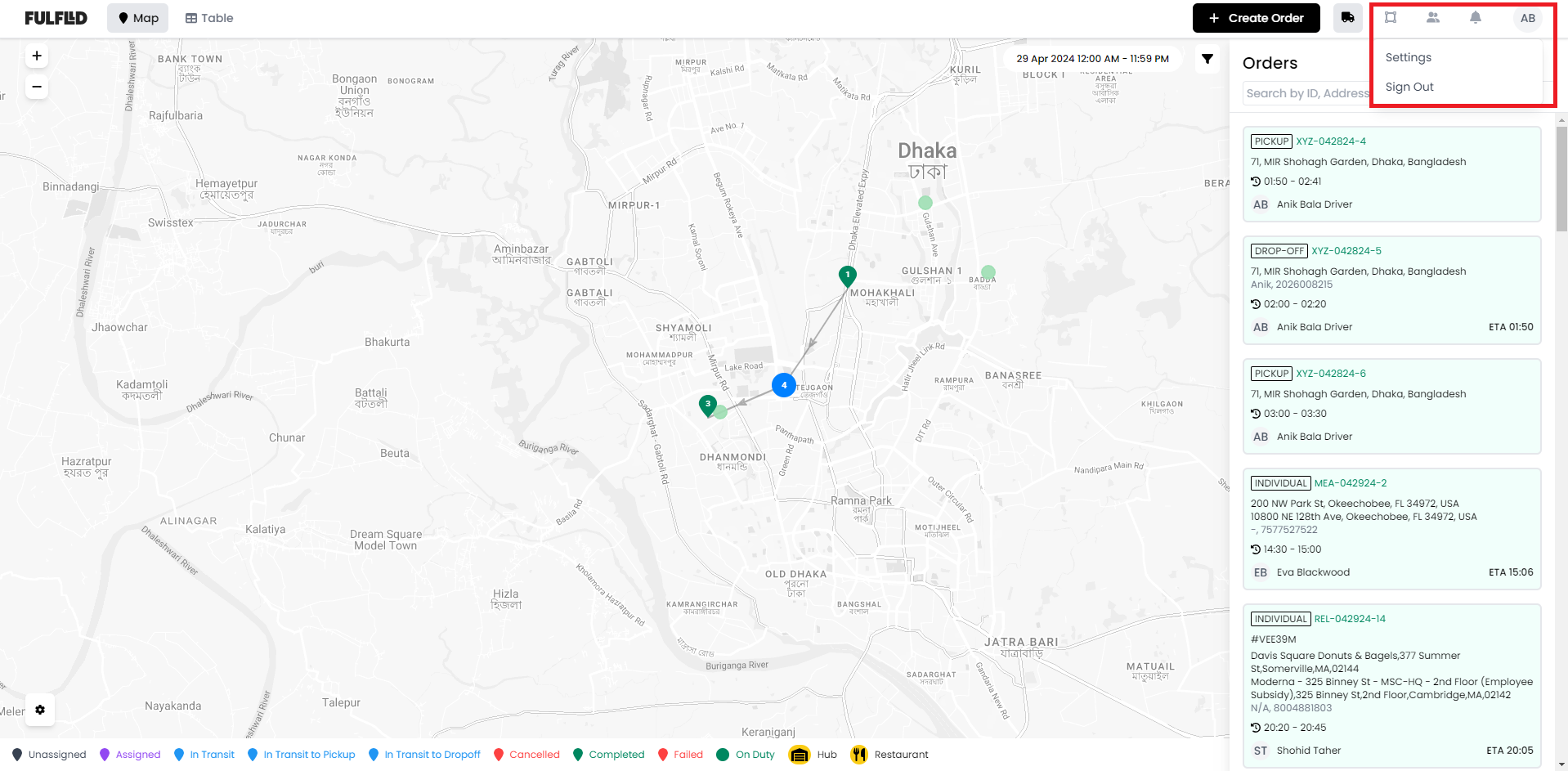
Go to Settings from the avatar dropdown.
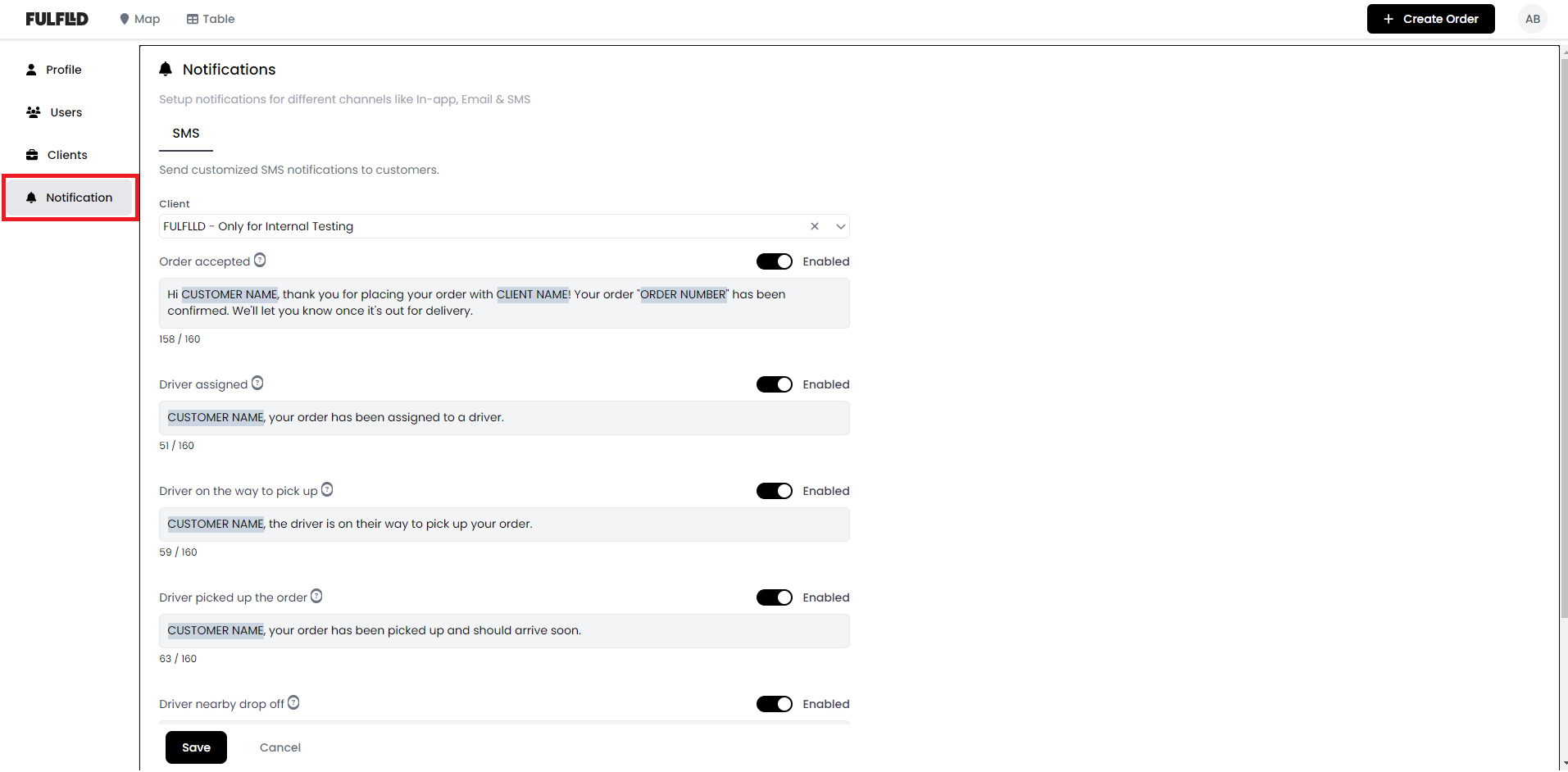
Select “Notification” from the left navigation bar.
Manage/Edit SMS notification
You can set up SMS notification for the following events:
- Order Accepted: This notification serves as confirmation that the order has been successfully received and acknowledged by the restaurant or service provider. It reassures the recipient that their request is being processed and attended to.
- Driver Assigned: This notification is to inform that a designated driver has been assigned to collect and deliver the order. Rest assured, the delivery is now in capable hands, and the driver is en route to ensure timely and efficient delivery to the specified location of the recipient.
- Driver on the Way to Pick Up: This notification alerts when the assigned driver is on their way to the pickup location.
- Driver Pickup Up The Order: This notification serves as confirmation that the driver has successfully picked up the order from the restaurant or service provider. It indicates that the order is now in transit, and the recipient can expect its arrival shortly.
- Driver Nearby to Drop Off: This notification notifies when the driver is nearing the delivery location, allowing to prepare to receive the order promptly. It ensures that the recipient is ready to accept the delivery and facilitates timely arrival.
- Order Complete: This notification confirms the successful delivery and completion of the order. It signifies the conclusion of the delivery process and assures you that the order has been received.
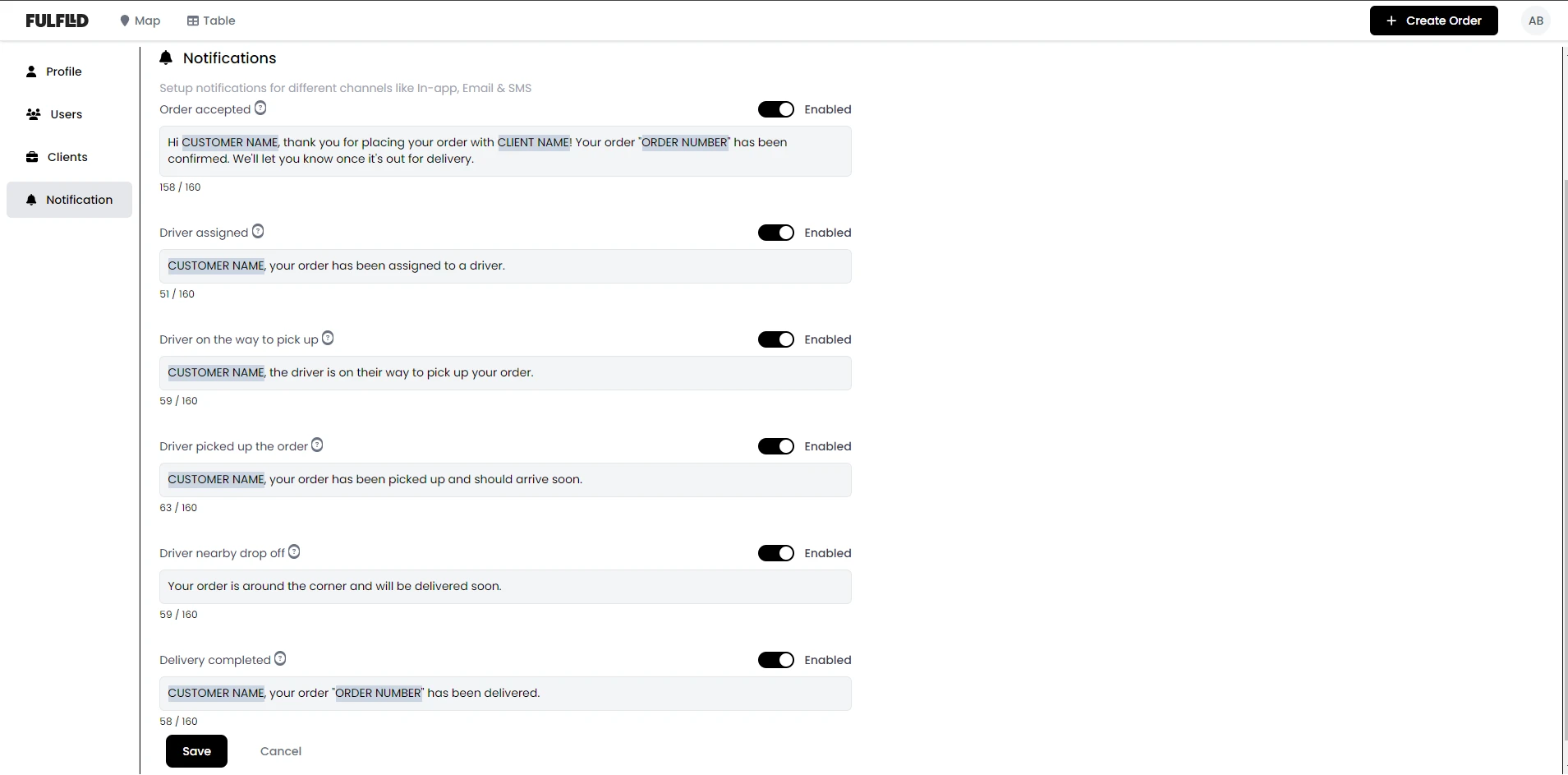
When you navigate to the Notification setting’s page, you will see all the events with their default SMS notification text.
Edit and Enable SMS templates
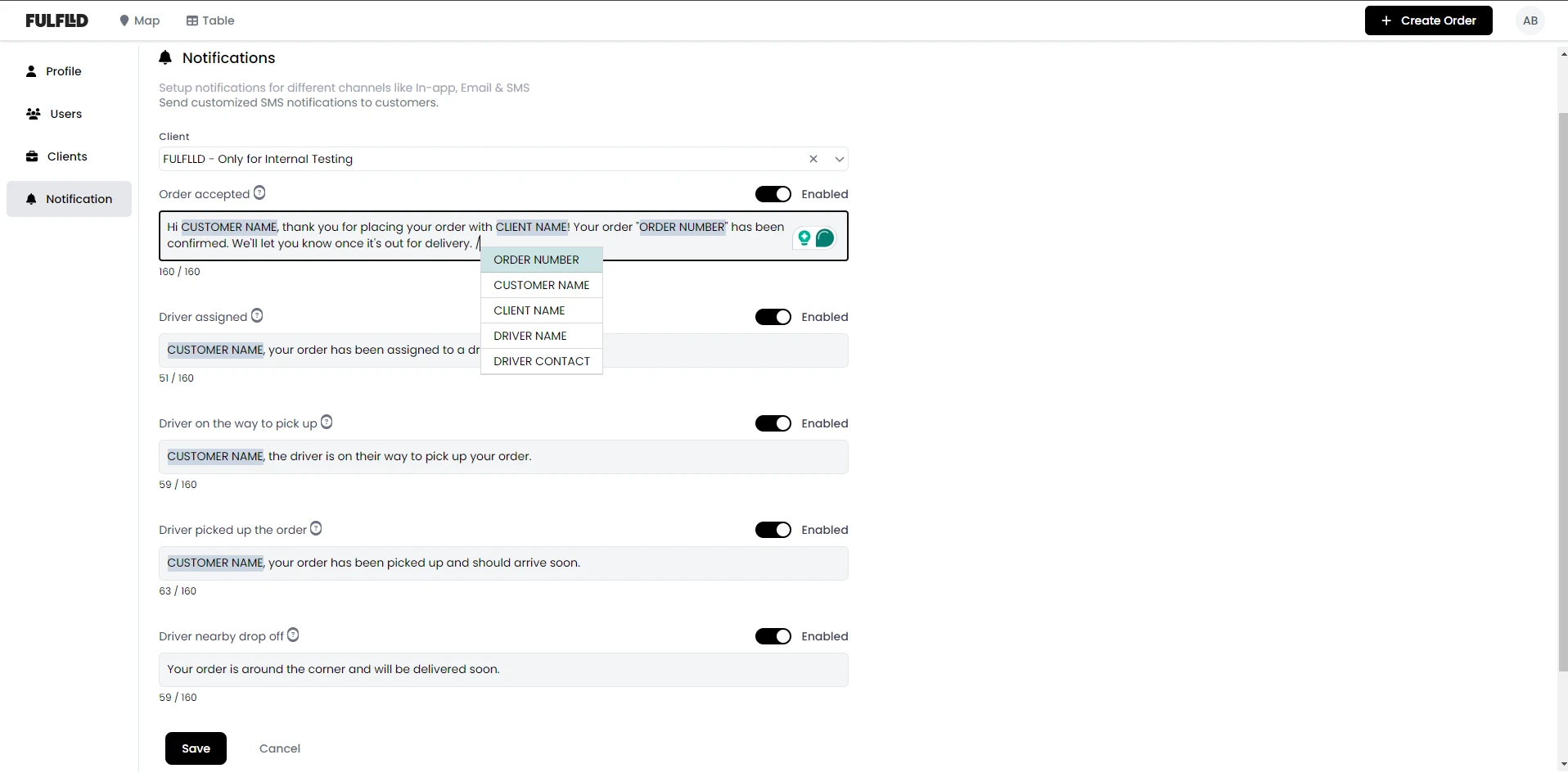
There’s a default template set for all the SMS notifications but you can edit the text as required.
To enter the placeholder in the SMS body for the following fields, Order Number, Customer Name, Client Name, Driver Name, Driver Contact, use a Slash “/” in the editor and then enter your desired text.
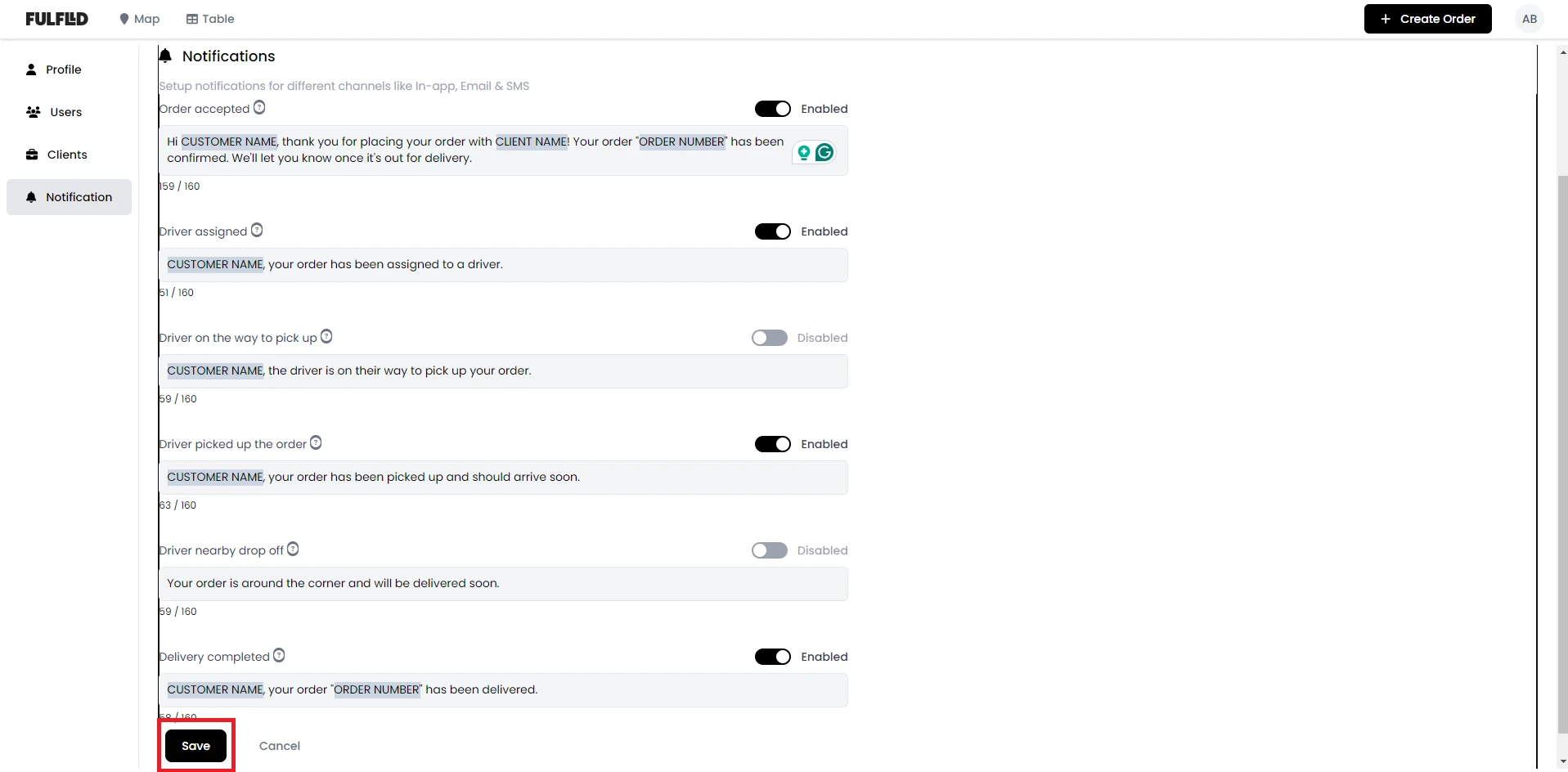
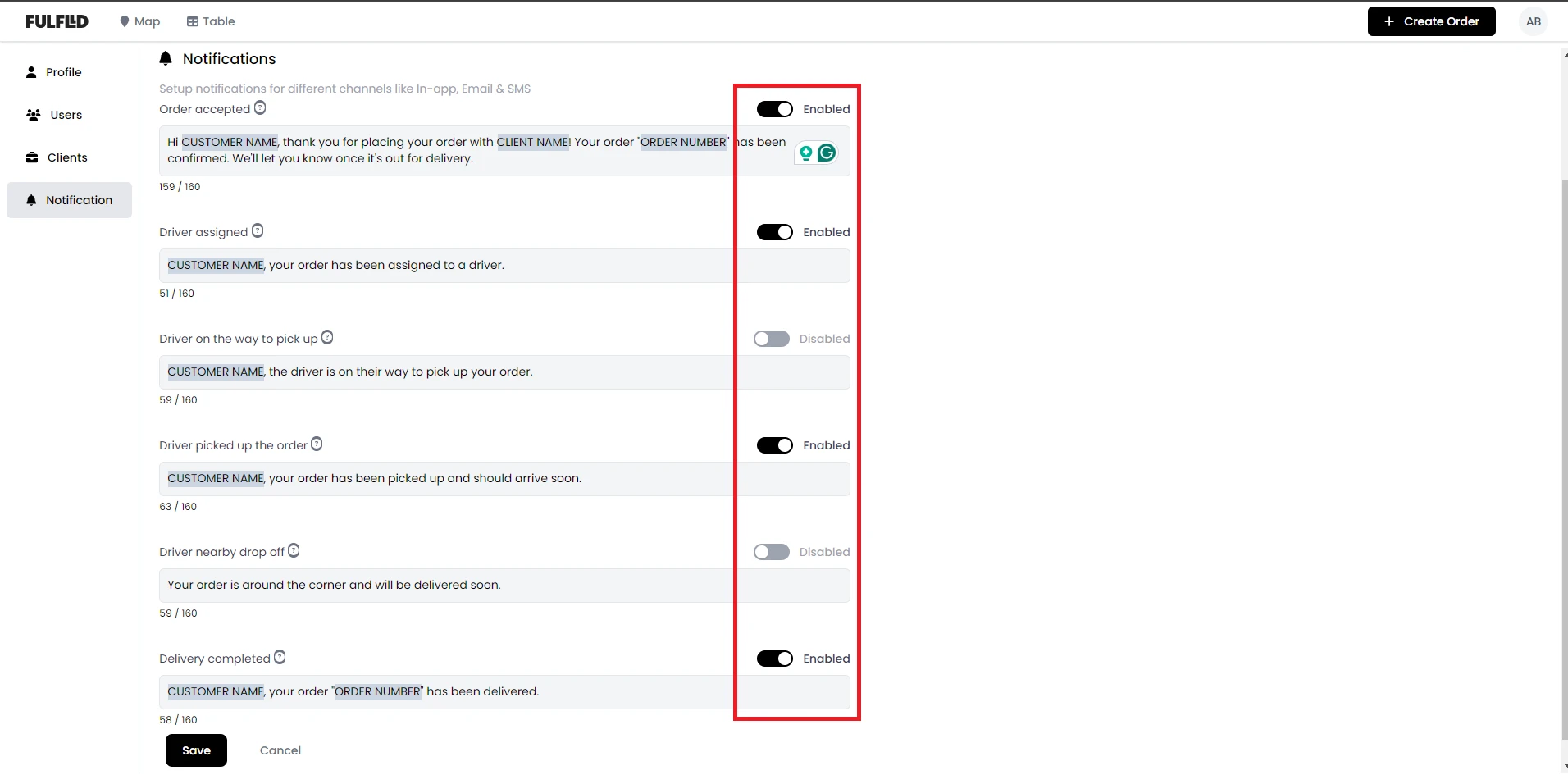
You can enable/disable SMS notifications for specific events using the toggle option beside each of the notification type as shown in the image below.
Click Save at the bottom to preserve the changes.