Features
Managing Orders
In your role as a dispatcher, the Fulflld platform offers the flexibility to edit orders, assign them to drivers, and provide tools for tracking ongoing orders via the map view. This guide will walk you through the process of:
- Editing order
- Assigning driver
- Tracking ongoing orders
Edit order
After creating an order, the order card appears under the order panel of the platform.
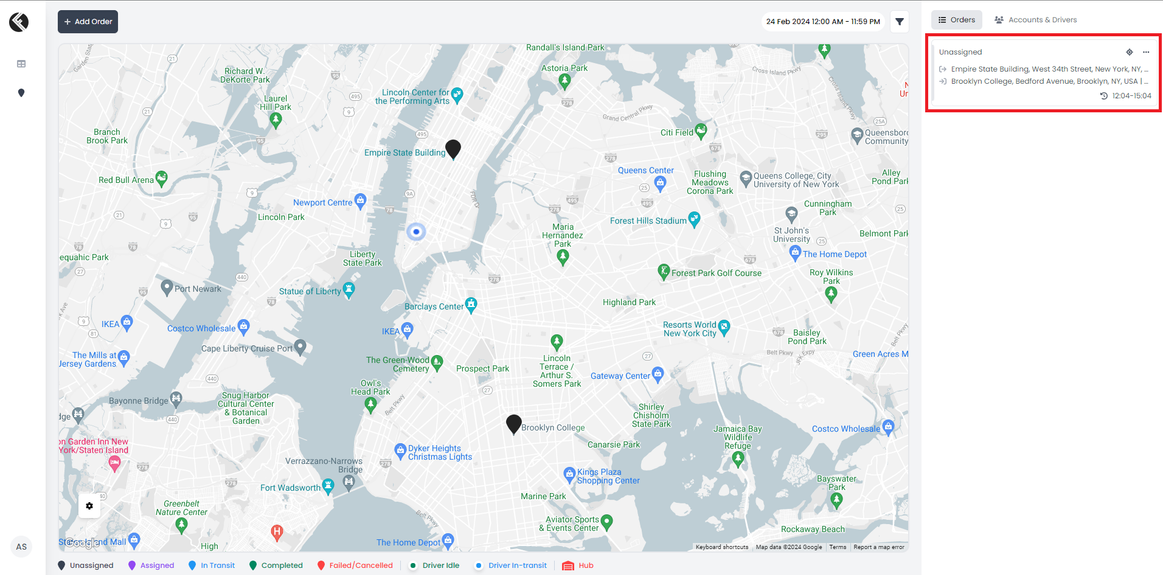
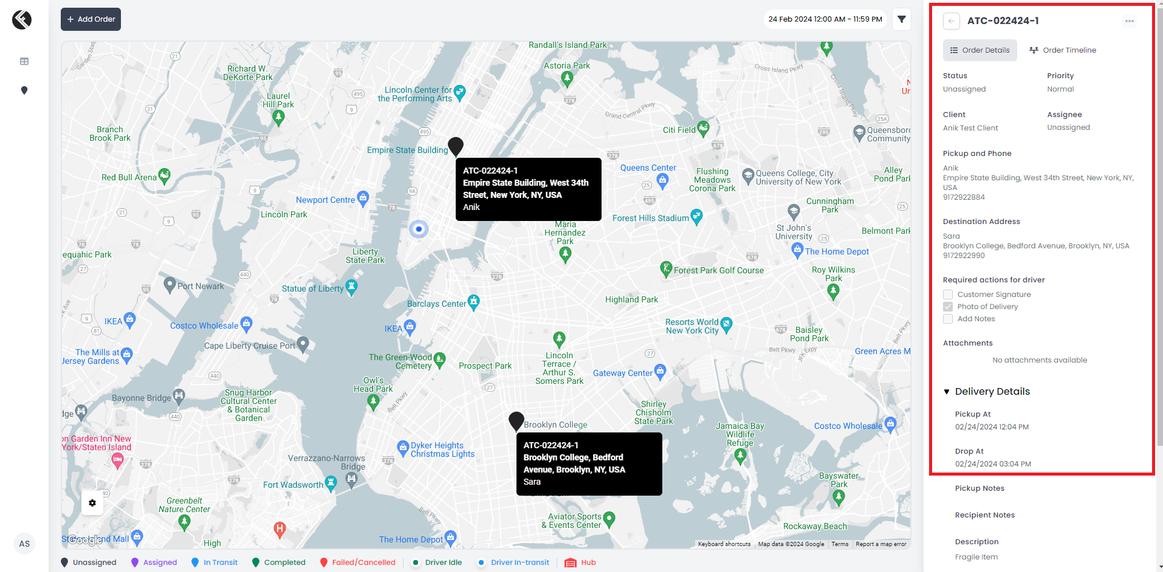
Click on the ellipsis(…) in the order card to see the details of the order.
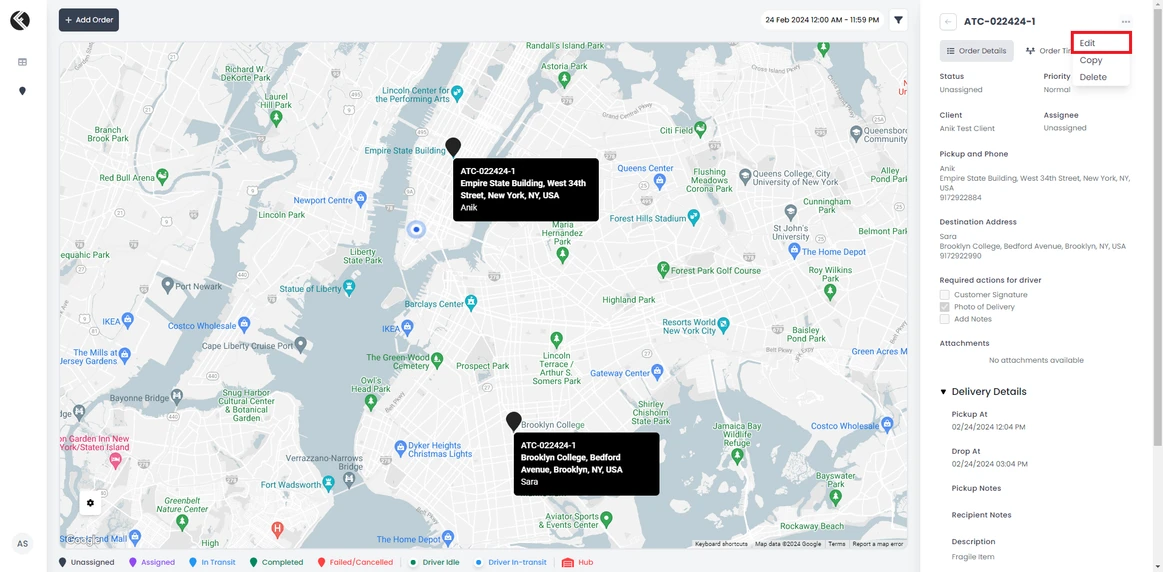
Click on the ellipsis on the order details panel and select edit from the dropdown to update any information about the order.
Assign Driver
In the edit mode of the order details panel, you can assign the order to a driver under the assignee field.
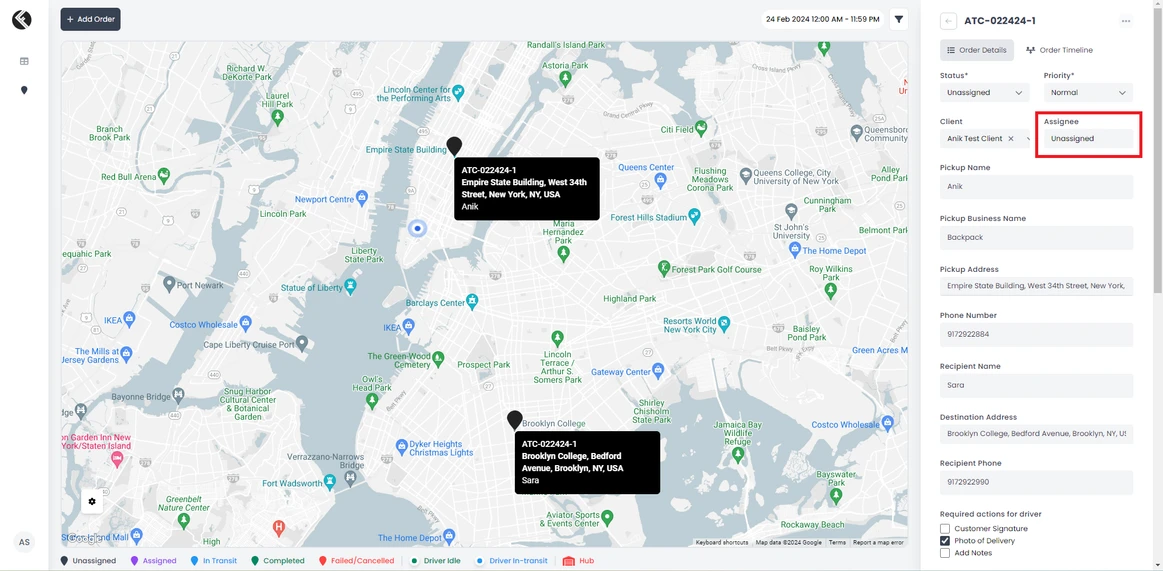
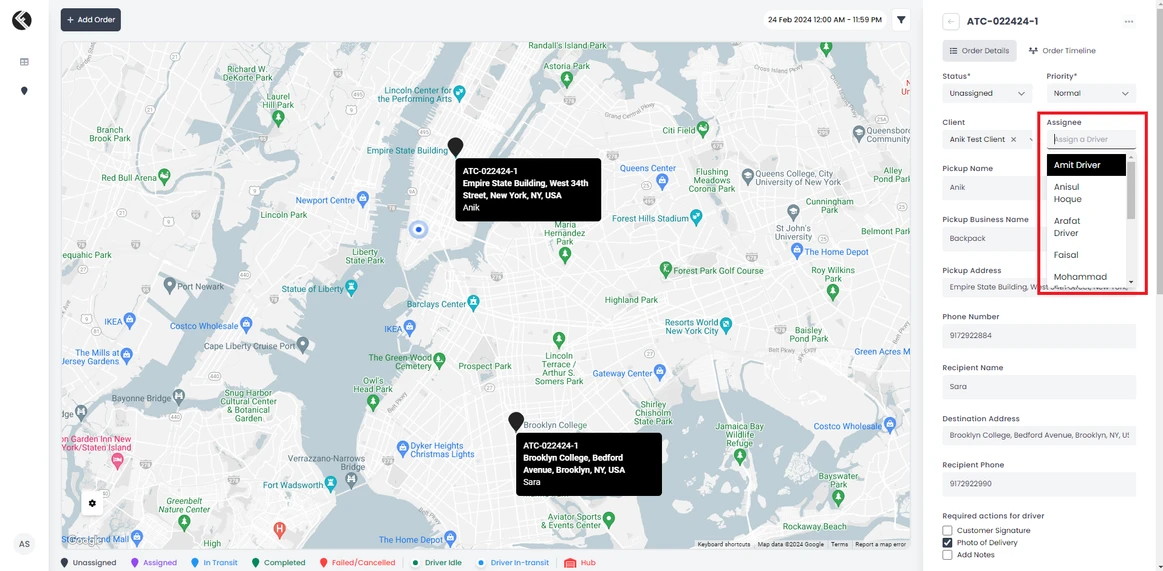
Click on the assignee field box, and write the driver name you want to assign the order to, or select the driver from the dropdown.
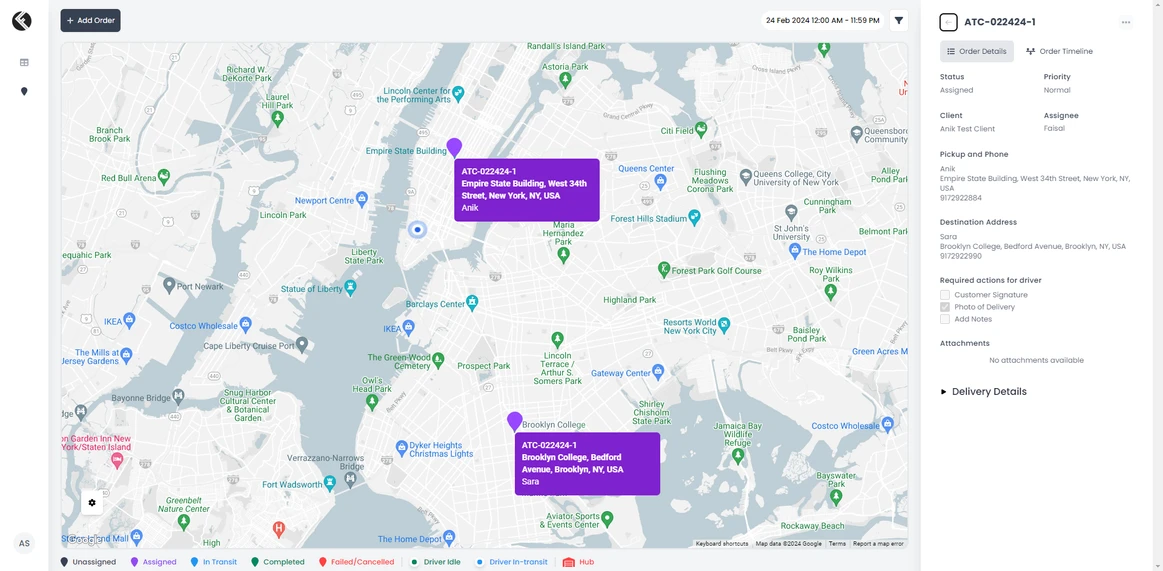
Once the driver is assigned the color of the markers will be changed.
Track Ongoing Orders
The marker colour changes when the driver starts for the pick-up location and the order status changes to in transit.
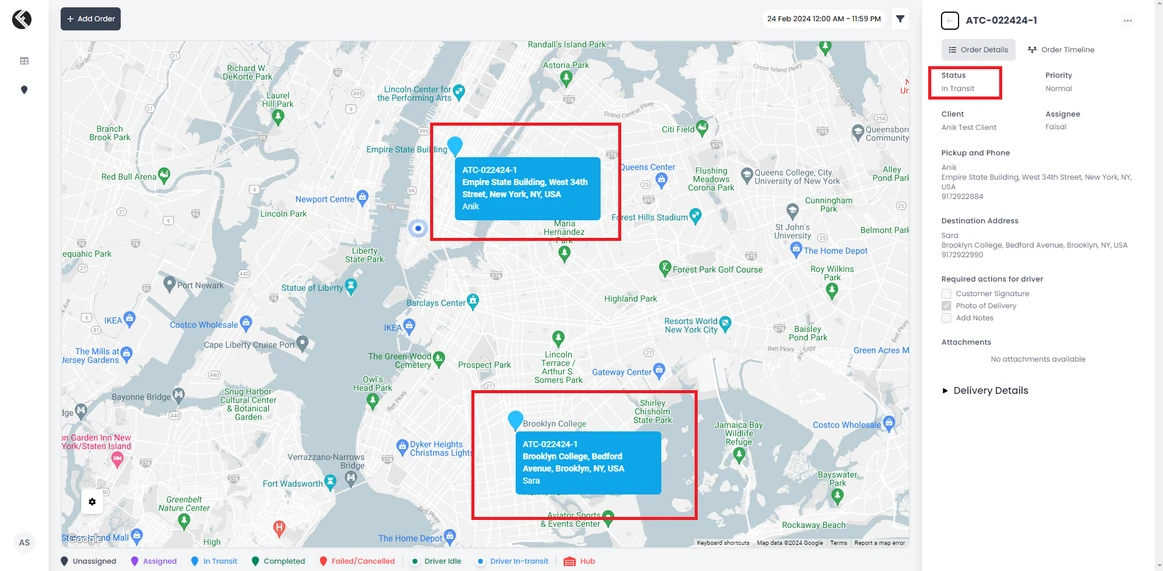
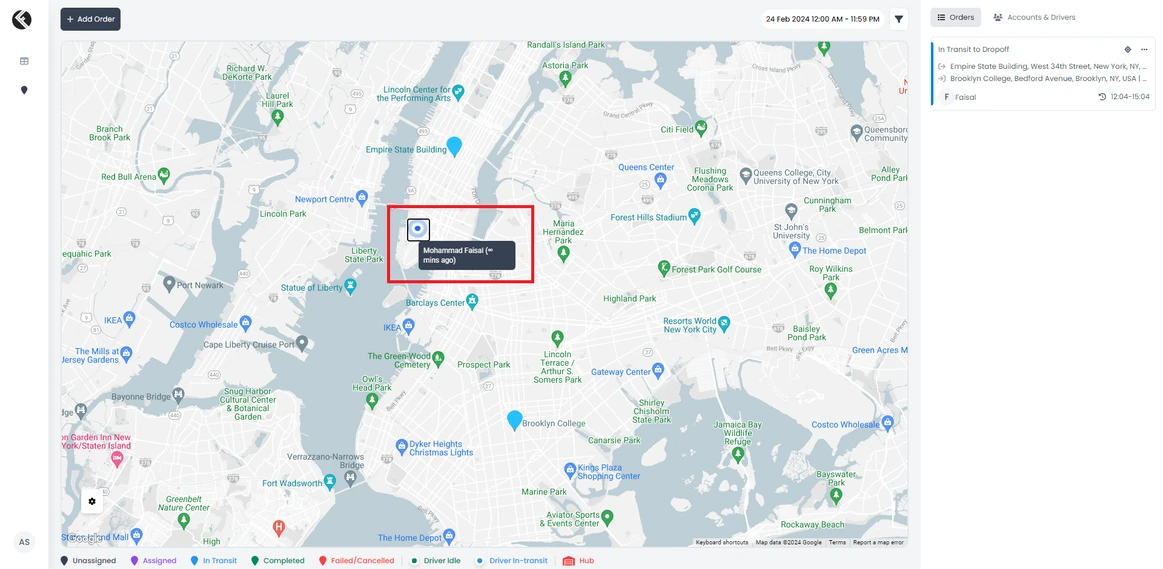
You can track the driver’s movement by the driver marker on the map.
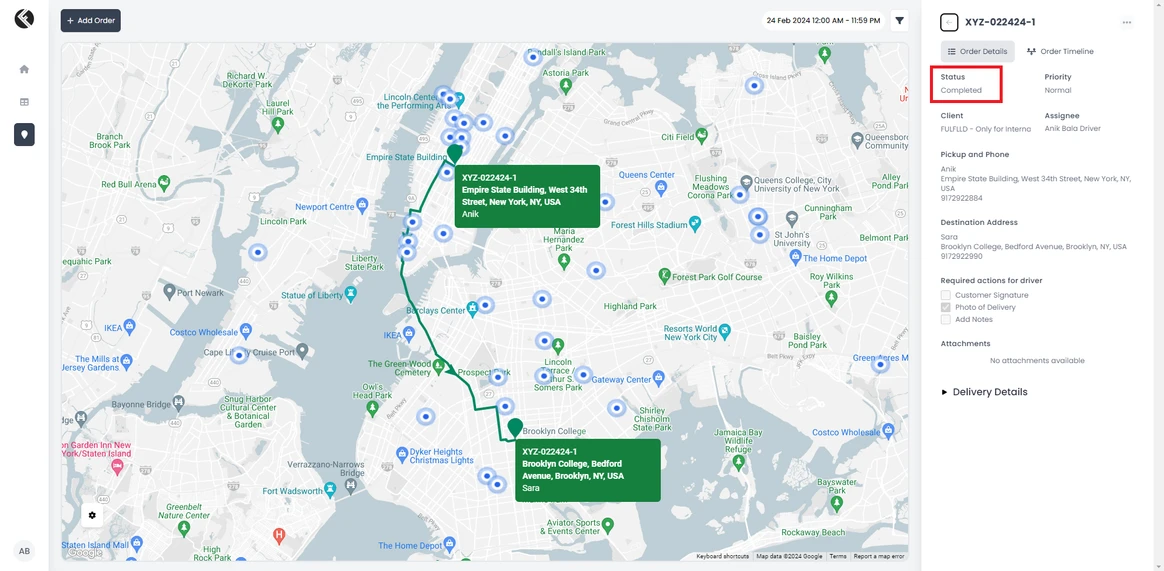
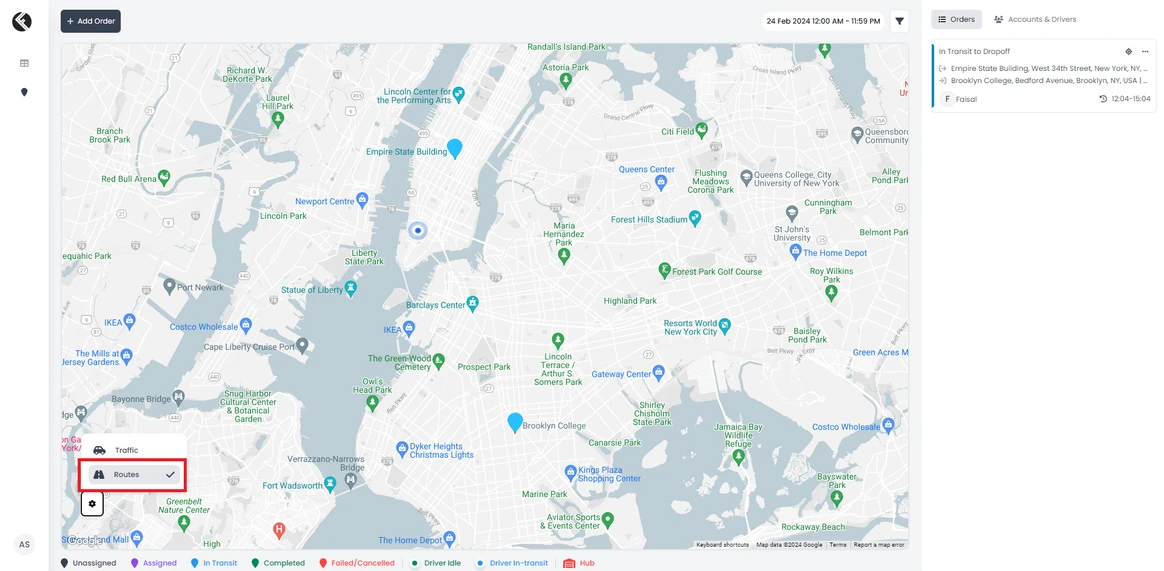
Select Routes from the map settings to track the order on the map.
You can track driver’s position in the route from the pick to drop off.
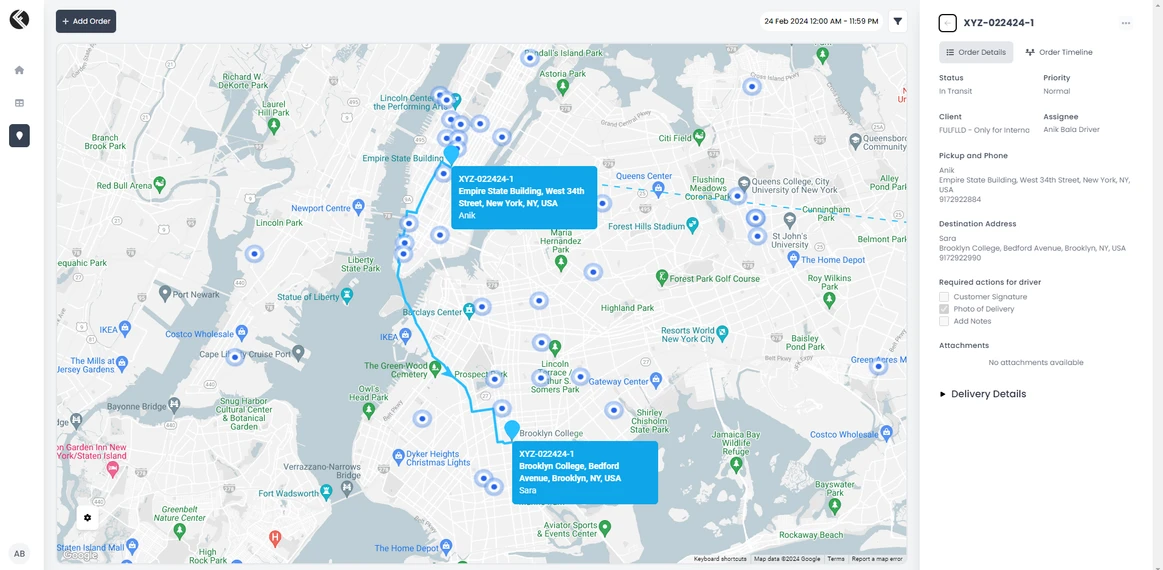
The route and marker colour will be turned into green/red upon the completion or failure of the delivery.