Driver App
Driver App
To view and initiate the assigned orders, a driver must download the driver app and create a profile. Drivers ensure the successful pickup/drop off of the order. Each order moves through a flow from pickup to drop-off. The order could be only pickup or dropoff as well.
In this article, we will learn how to,
- Set up the Driver App
- View assigned order
- Initiate and complete order
Setting up the Driver App
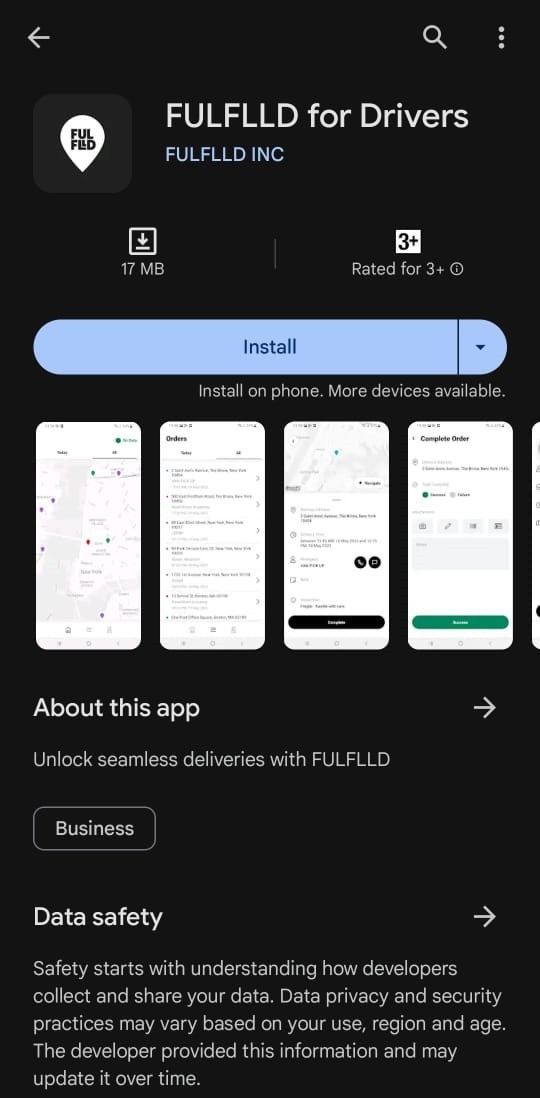
Go to the Google Play Store and download the FULLFLLD for Drivers app from here, on your mobile device.
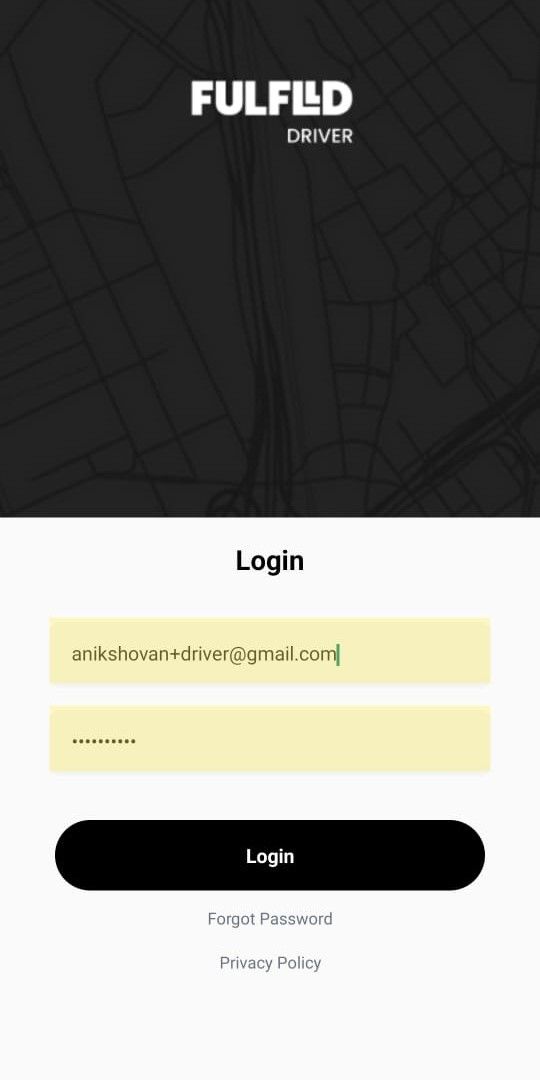
Open the app on your mobile device, and enter the Email and Password to log in that you got from your dispatcher.
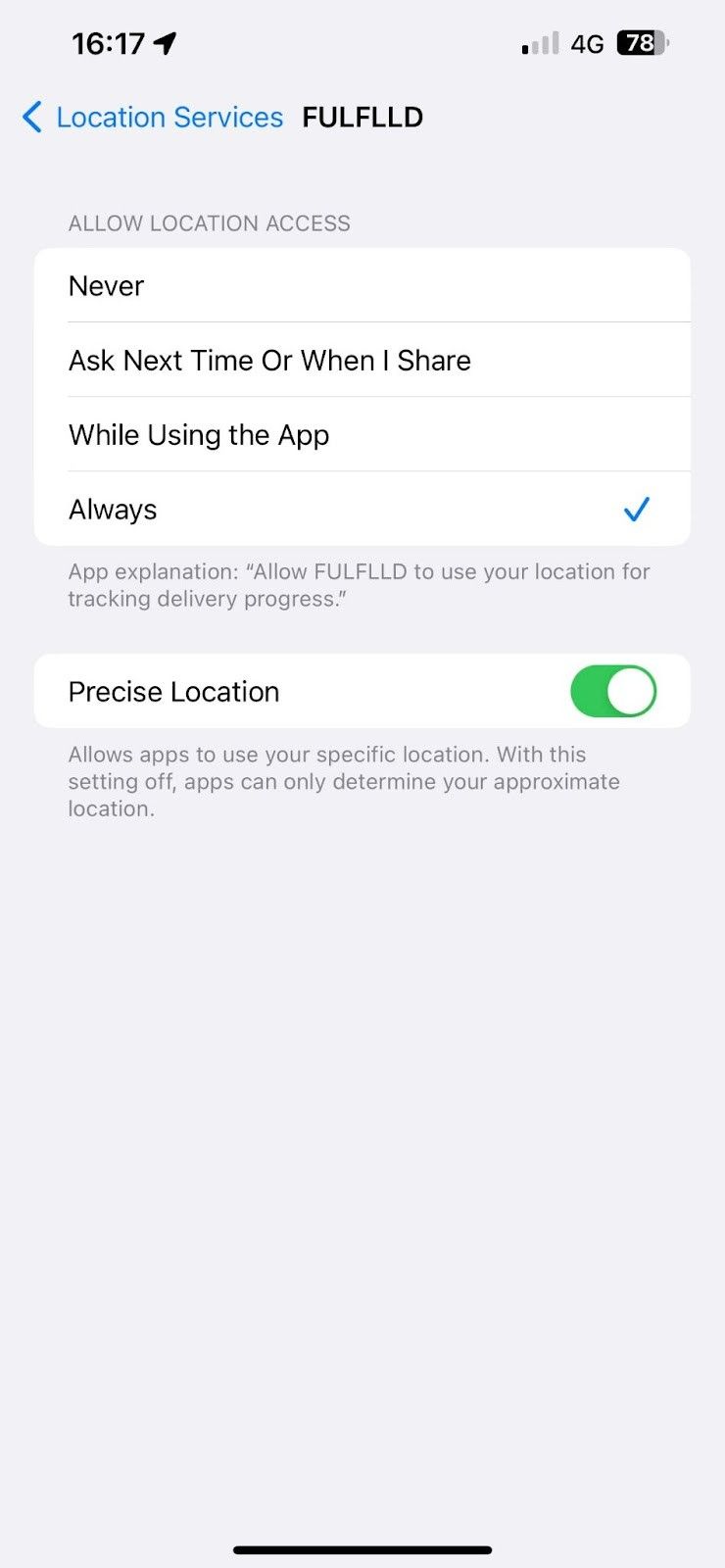
Tap the red alert message and enable the location settings “Always”.
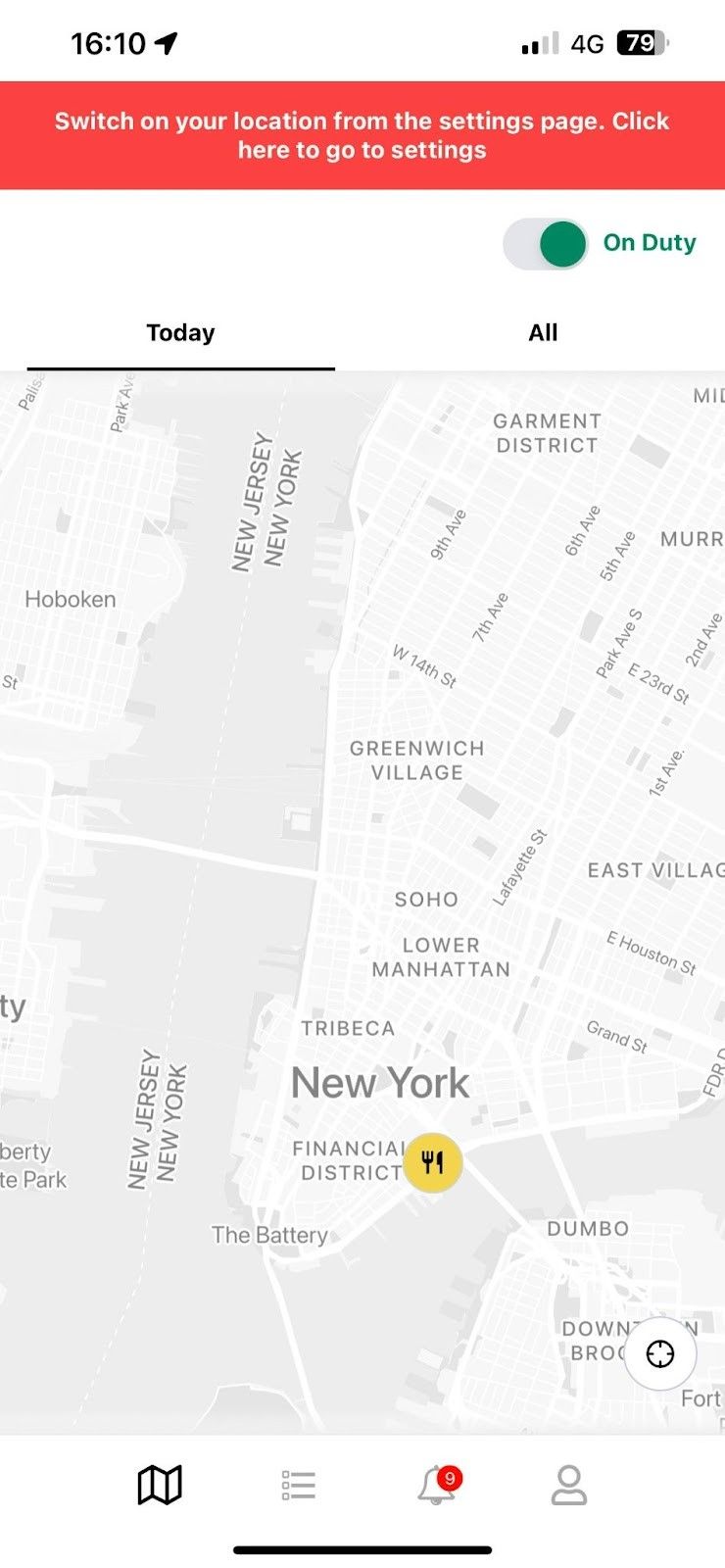
Toggle to switch on your status to “On-Duty”.
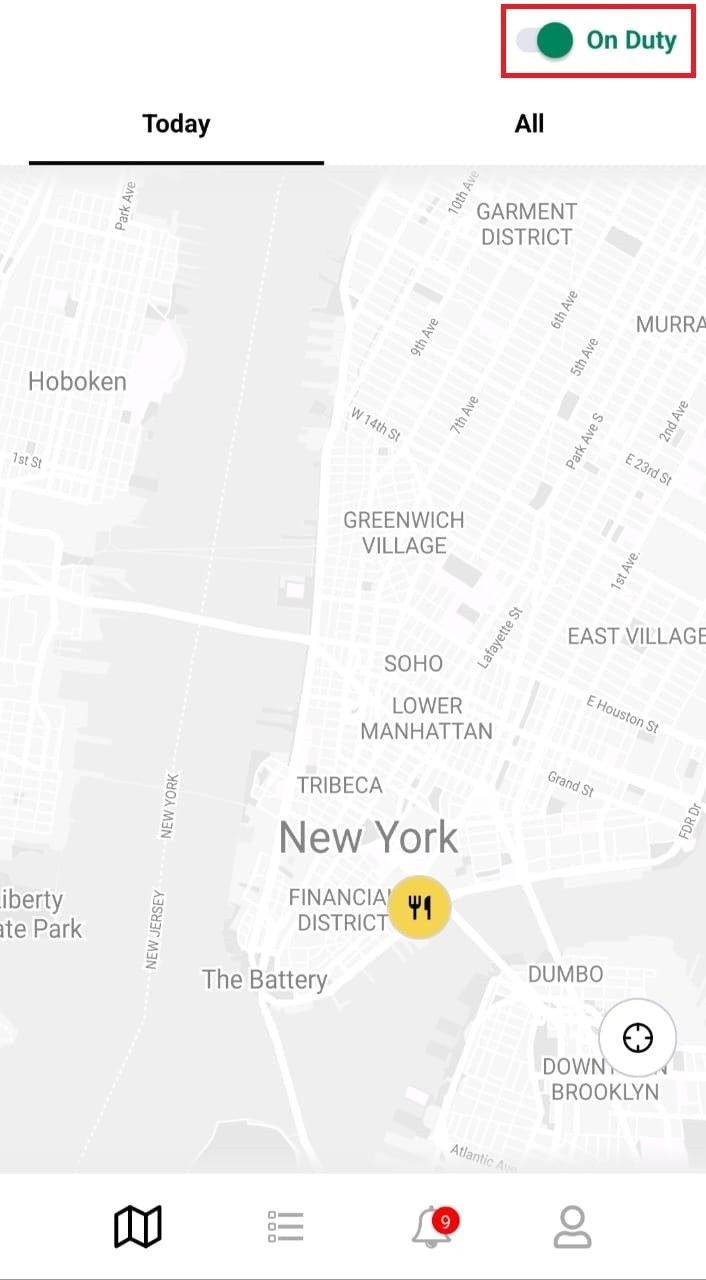
View Assigned Order
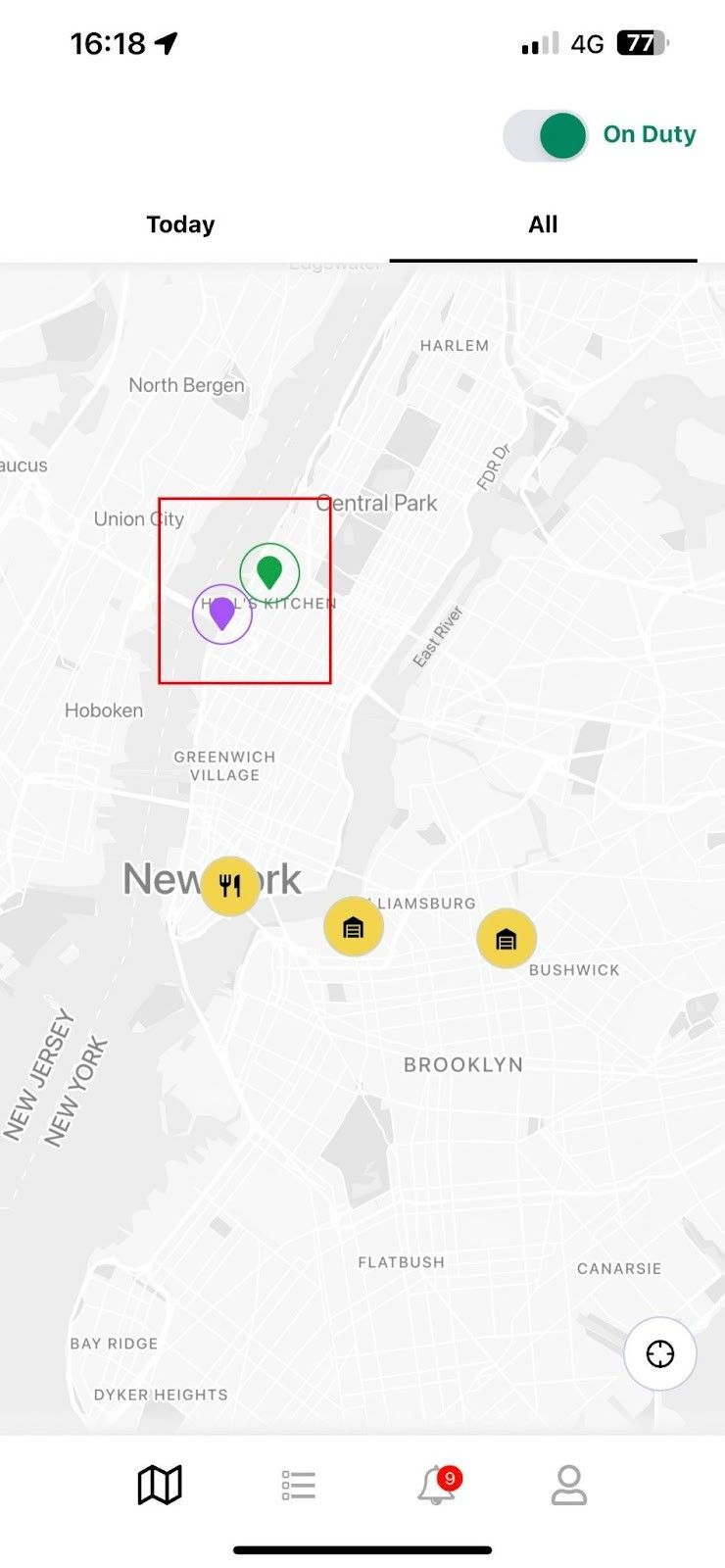
Upon logging in, you will be directed to the Map view of your order. You can seamlessly switch between the Order for Today and All Order tabs to see your designated orders.
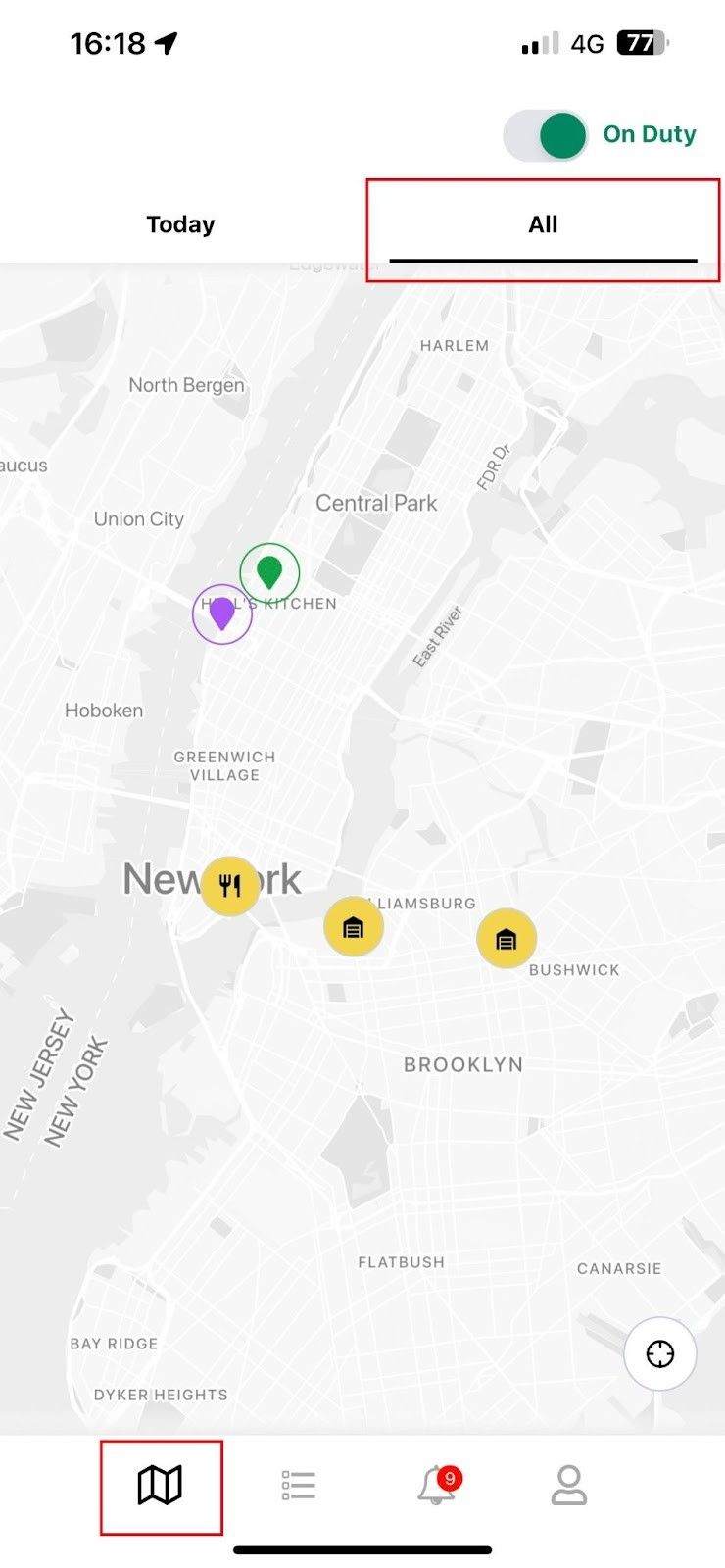
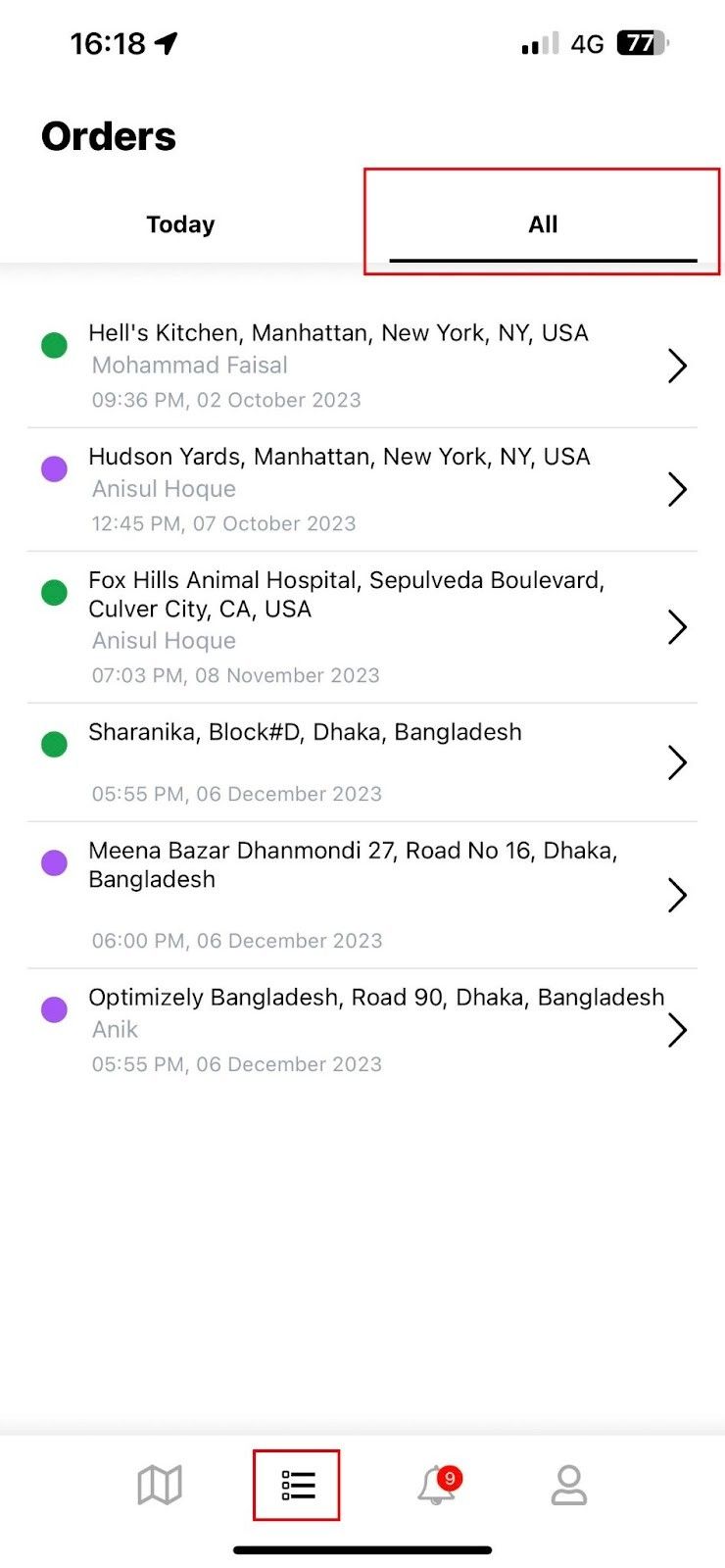
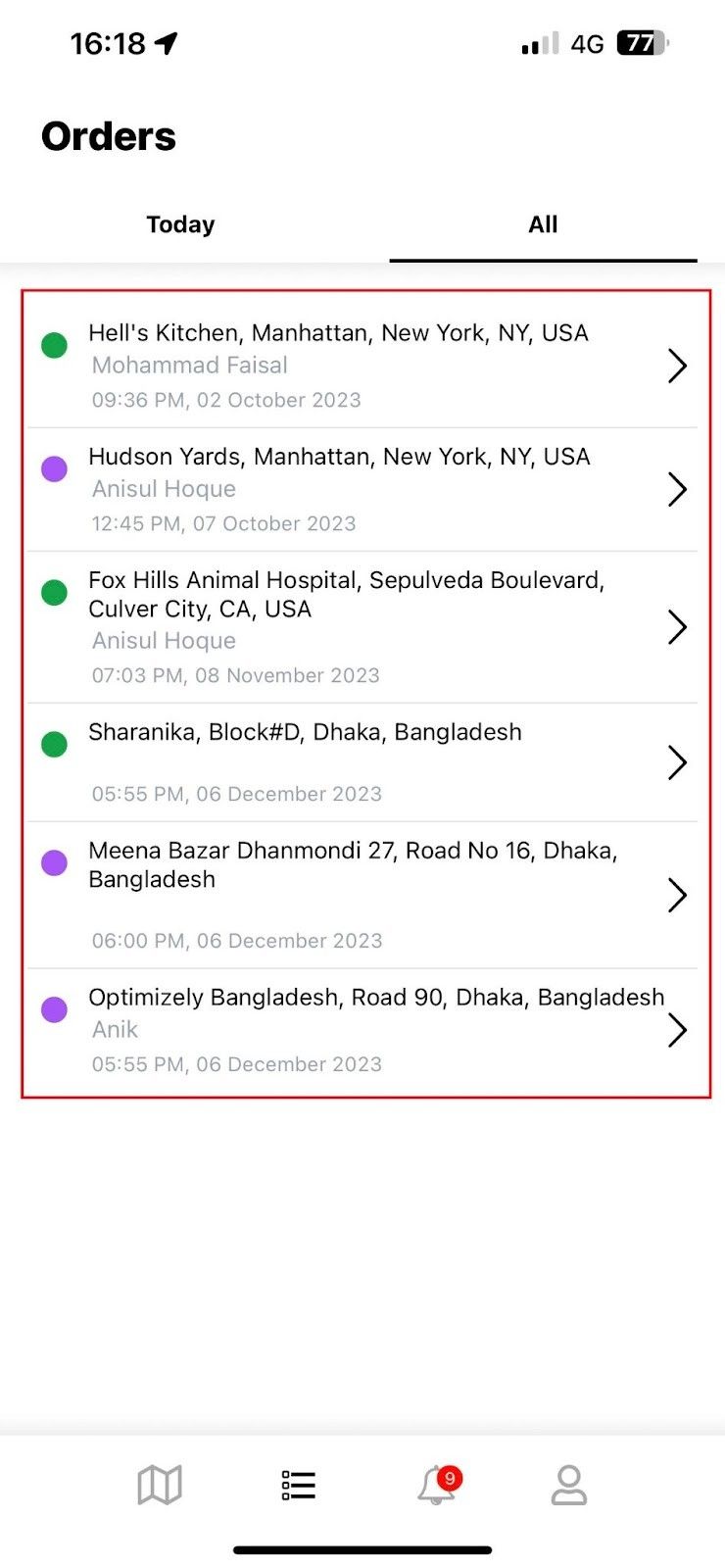
Select the list view to see a detailed view of your orders. Similar to the Map view, the List view incorporates the Today and All tabs for a refined organisation of your orders.
You can access information about your assigned orders from the Notification tab.
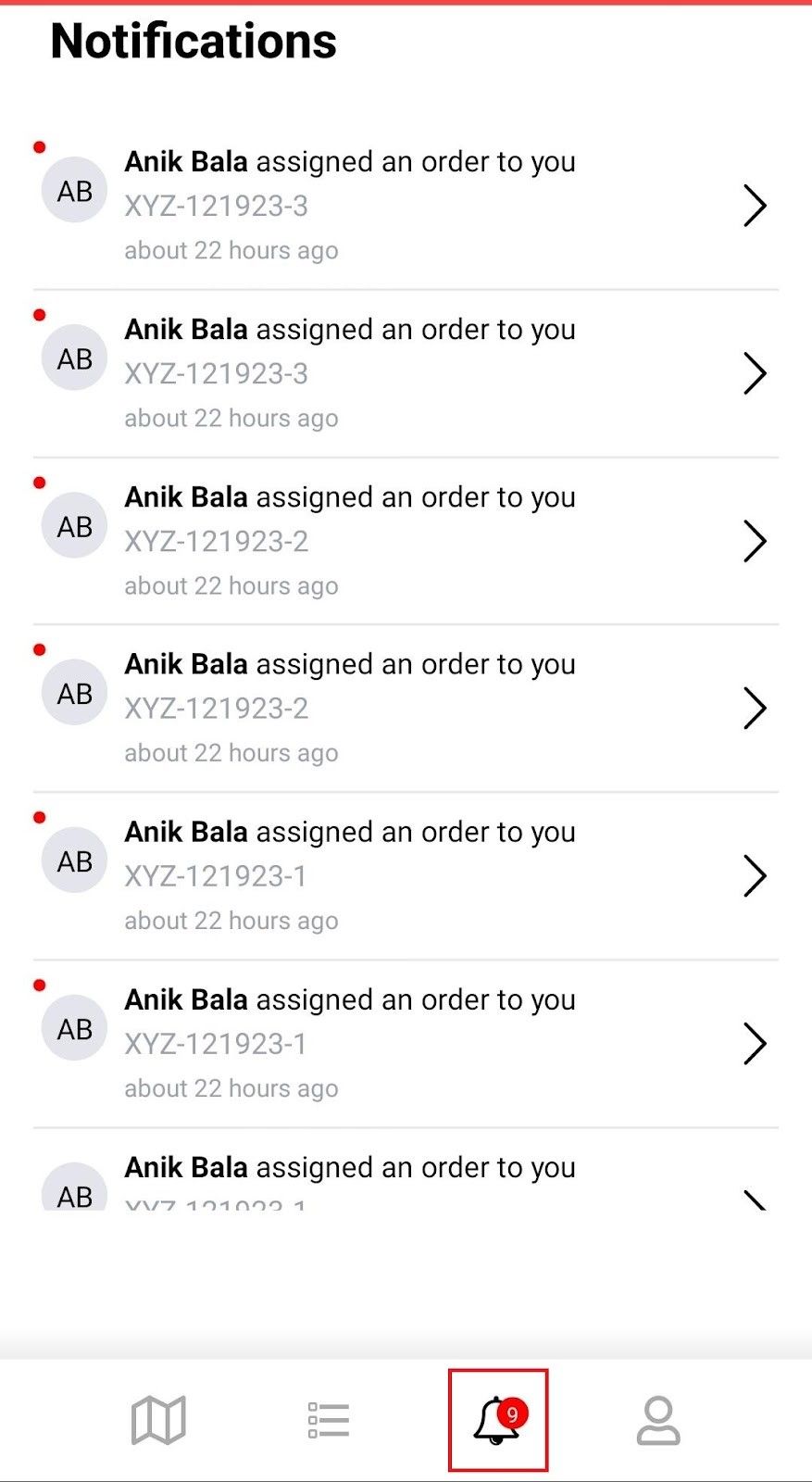
Initiate and complete orders:
Tap on the order from the Map/List view or from the Notifications to start the order.
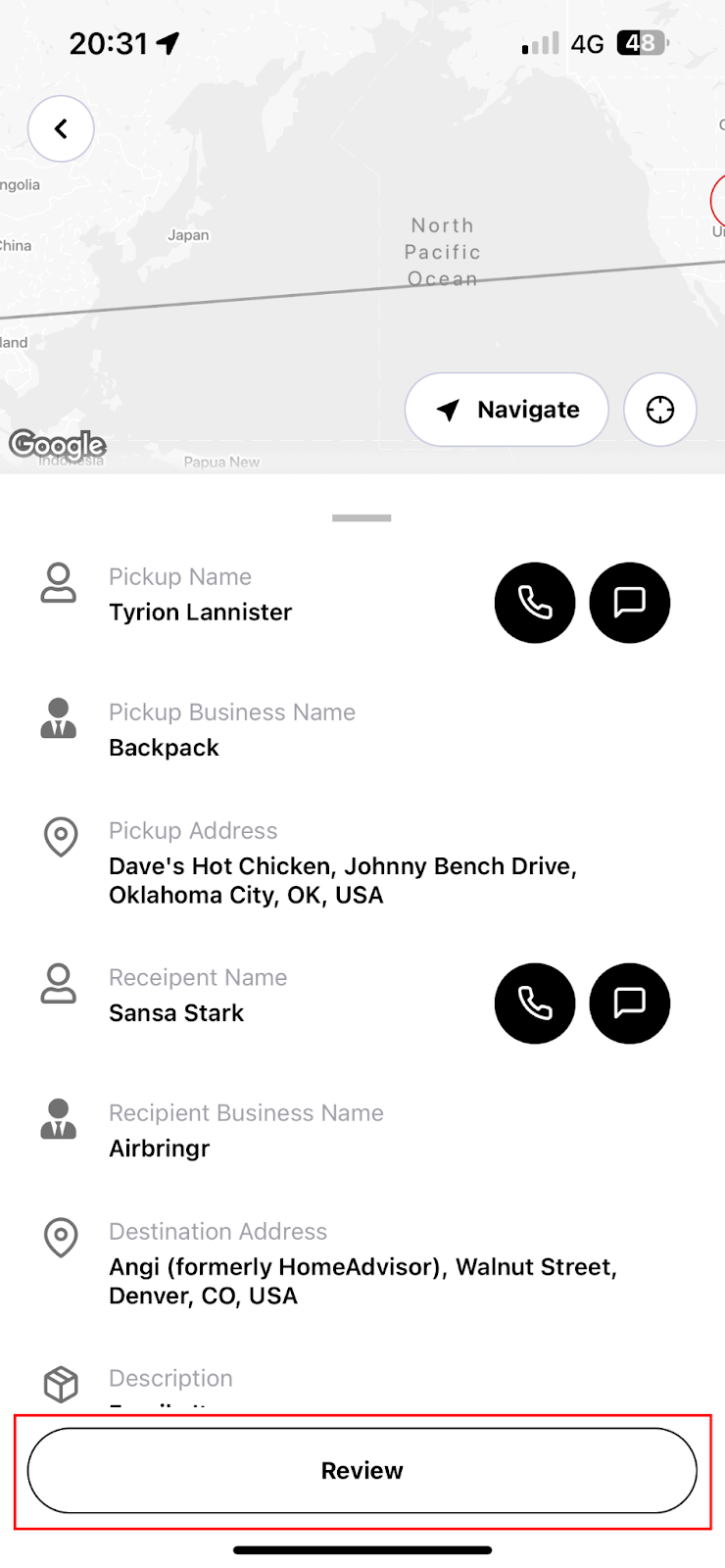
You will see the pickup and drop-off details on the next page. You can call or message the pickup or recipient business.
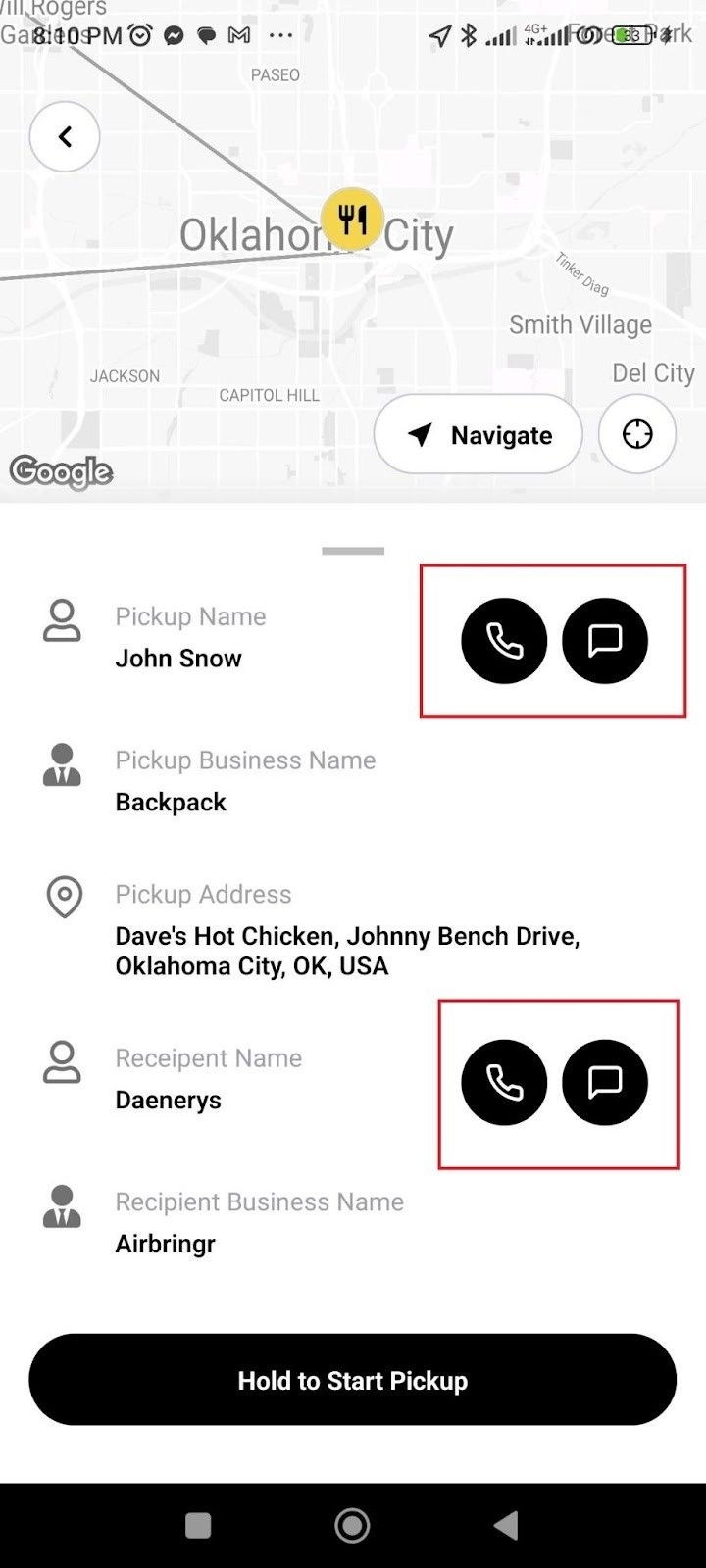
Tap and hold the button “Hold to Start Pickup” at the bottom of the screen right before you start for the pickup destination.
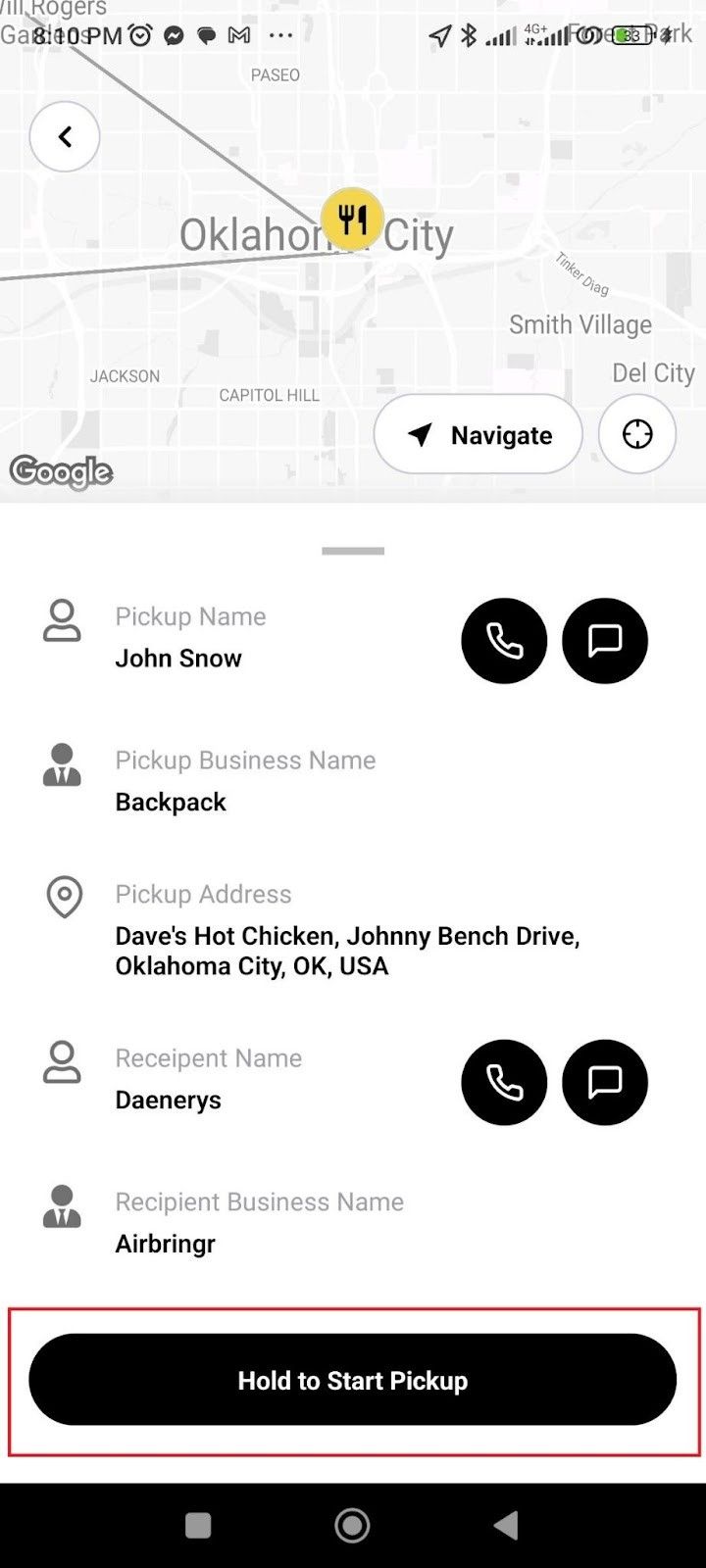
Once you collect the order from the pickup point, Tap and hold the button “Hold to Start Drop-off” at the bottom of the screen right before you start for the Drop-off destination.
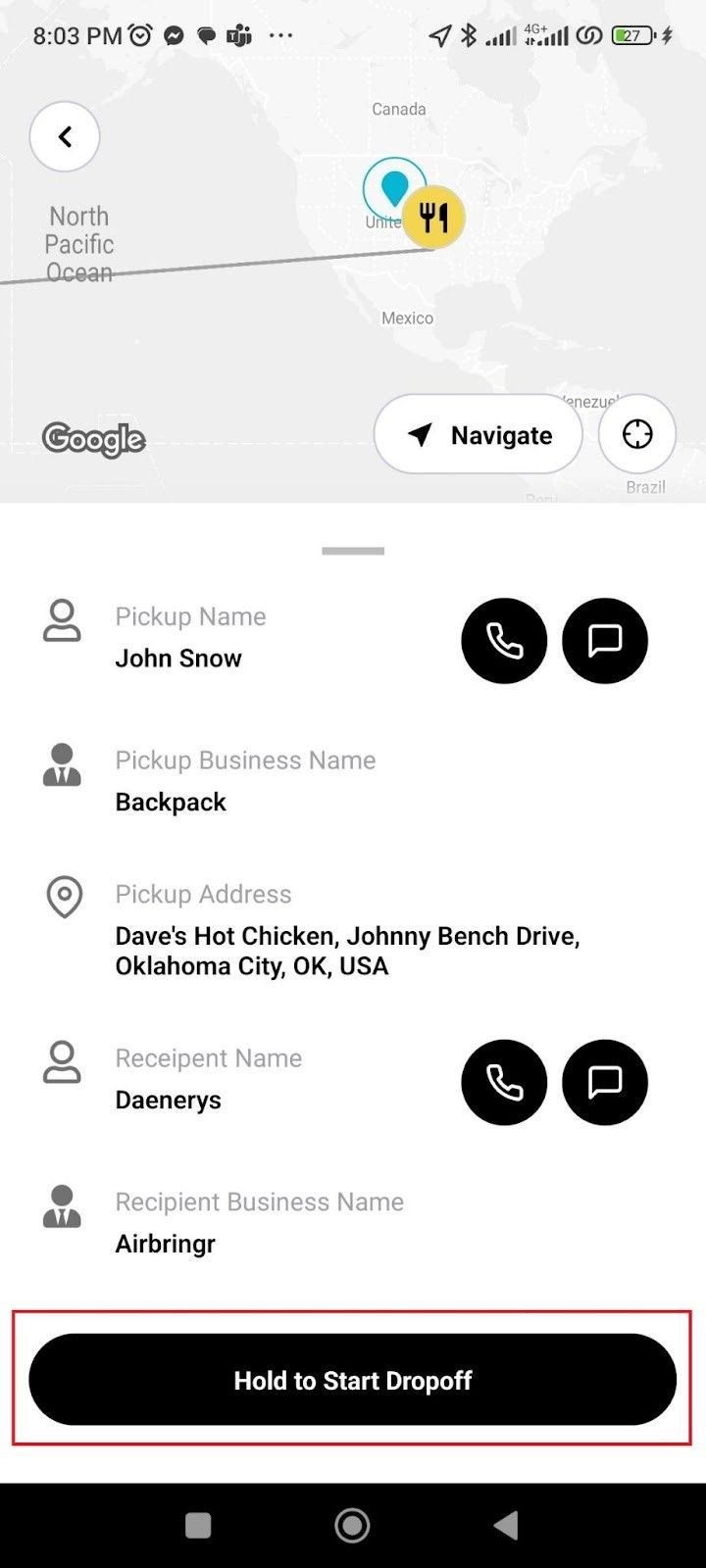
Tap complete, when you are done with the drop-off.
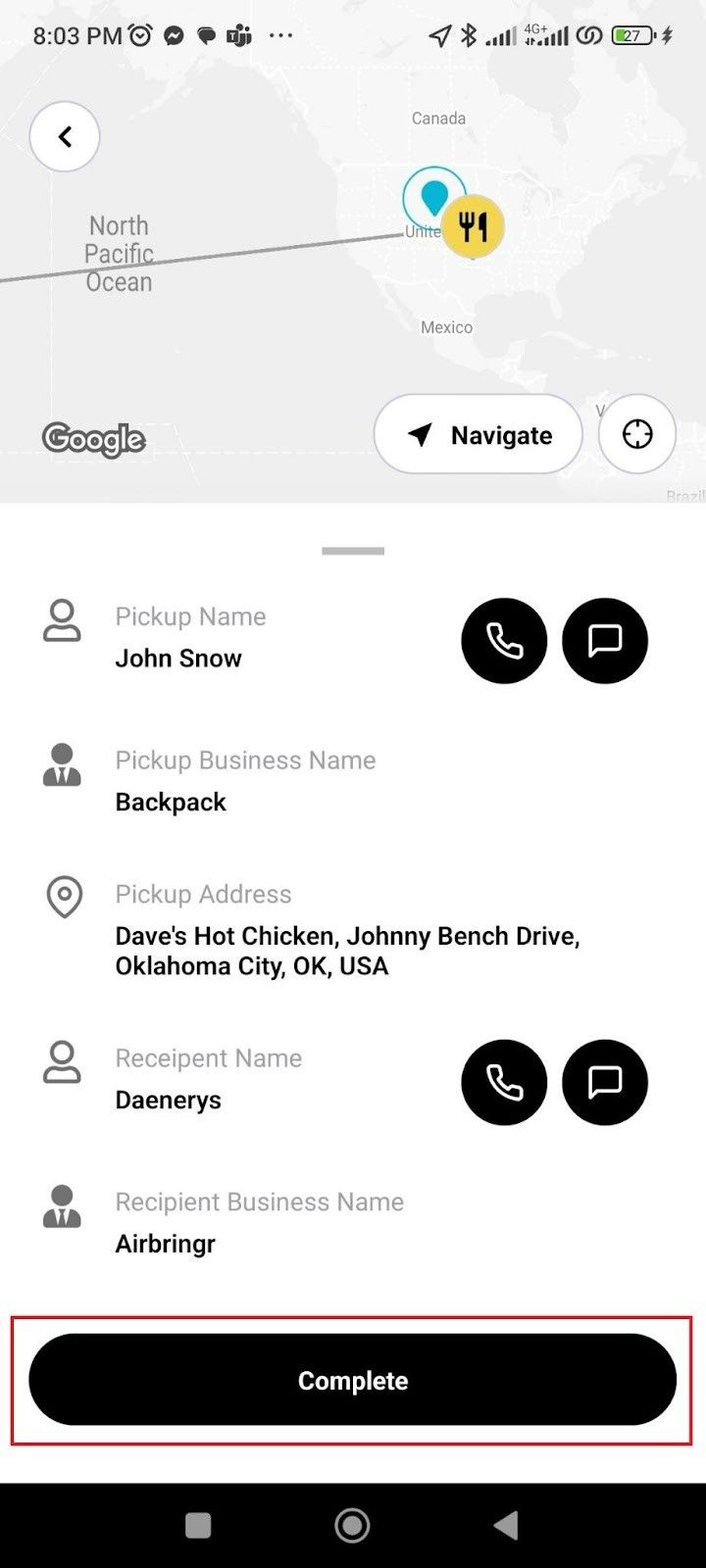
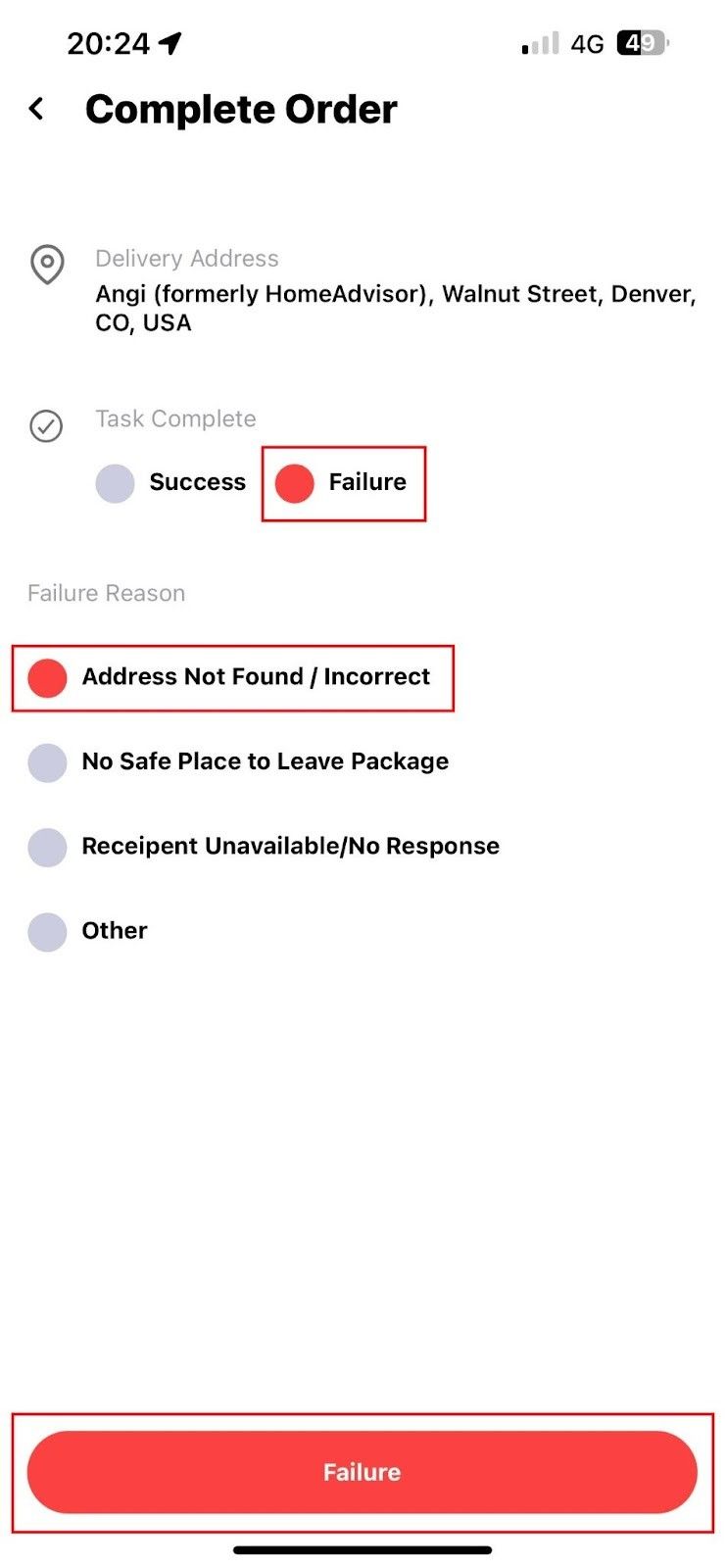
Select Success on the complete order page if the order is completed successfully. Attach a Photo of the Delivery, Customer Signature, and Notes as per the order requirements, and tap Success.

Select Failure and reason, if the order is not complete, and tap Failure.
You can Review your order later if required.