Features
Orders
Individual Deliveries vs Route Based Deliveries
Individual deliveries are referred to as 1 to 1 deliveries where a driver picks up the delivery from a restaurant or a hub and then delivers to the recipient's address. It is often picked up on or before a given time and then delivered to the recipient at a specific location on time.
Route based delivery refers to picking up a number of orders from a single hub or restaurant and then delivering to recipients one after another as per the suggested optimized route. Such orders are scheduled to be delivered within a given time frame to ensure that the deliveries are made on time.
Create an Individual Delivery Order
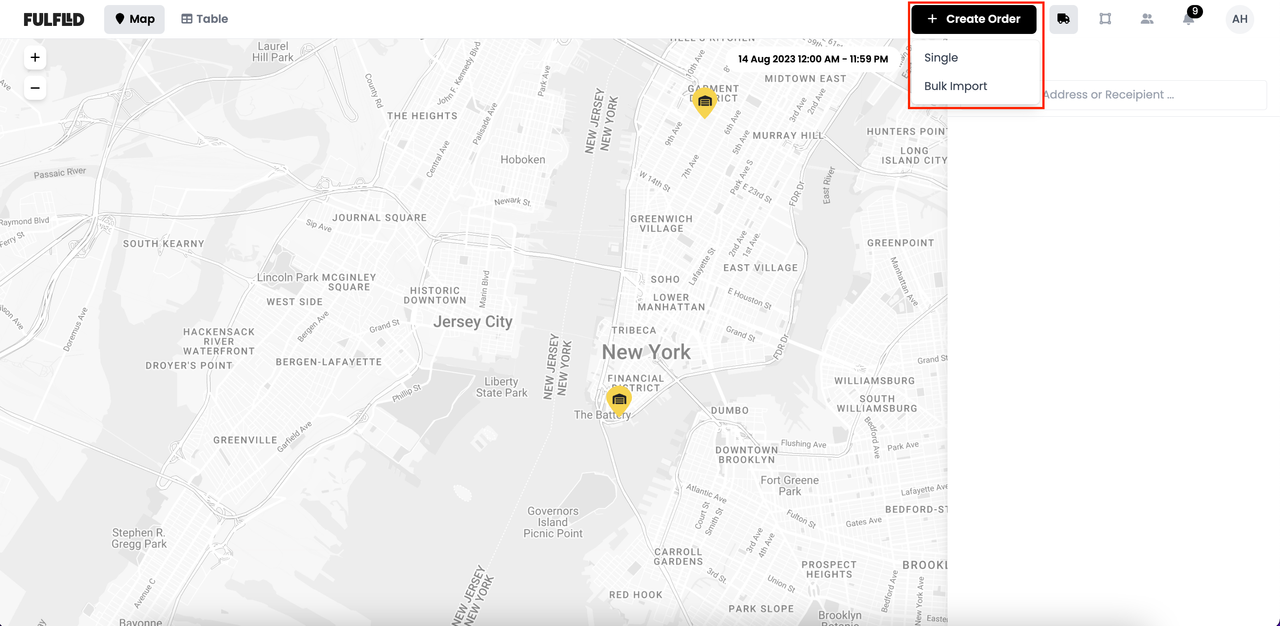
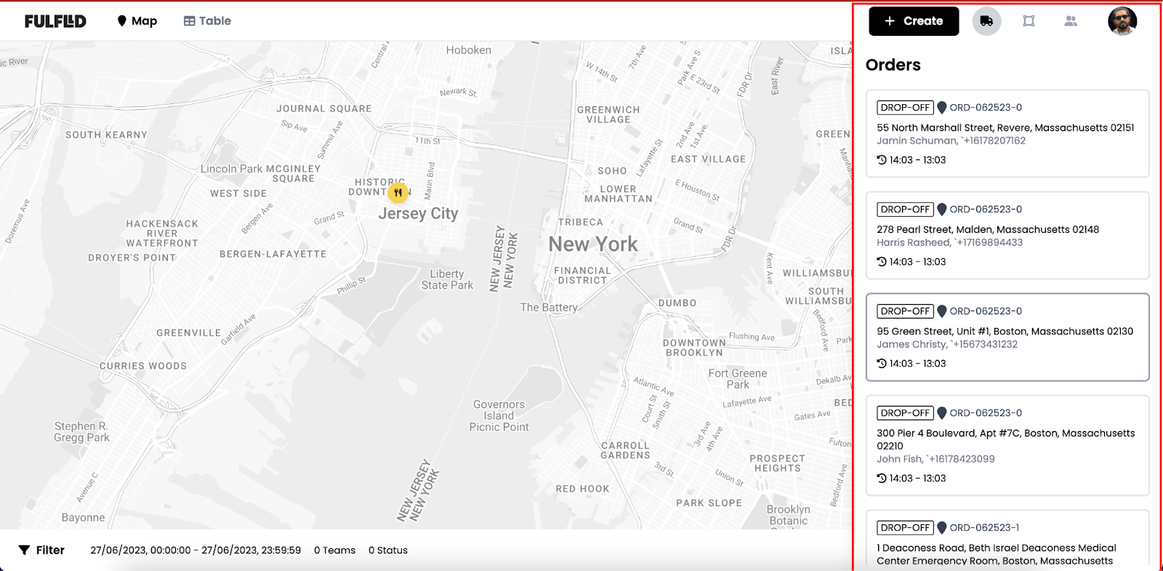
To create an individual delivery order click on the “+Create” for the top navigation bar and select a single order.
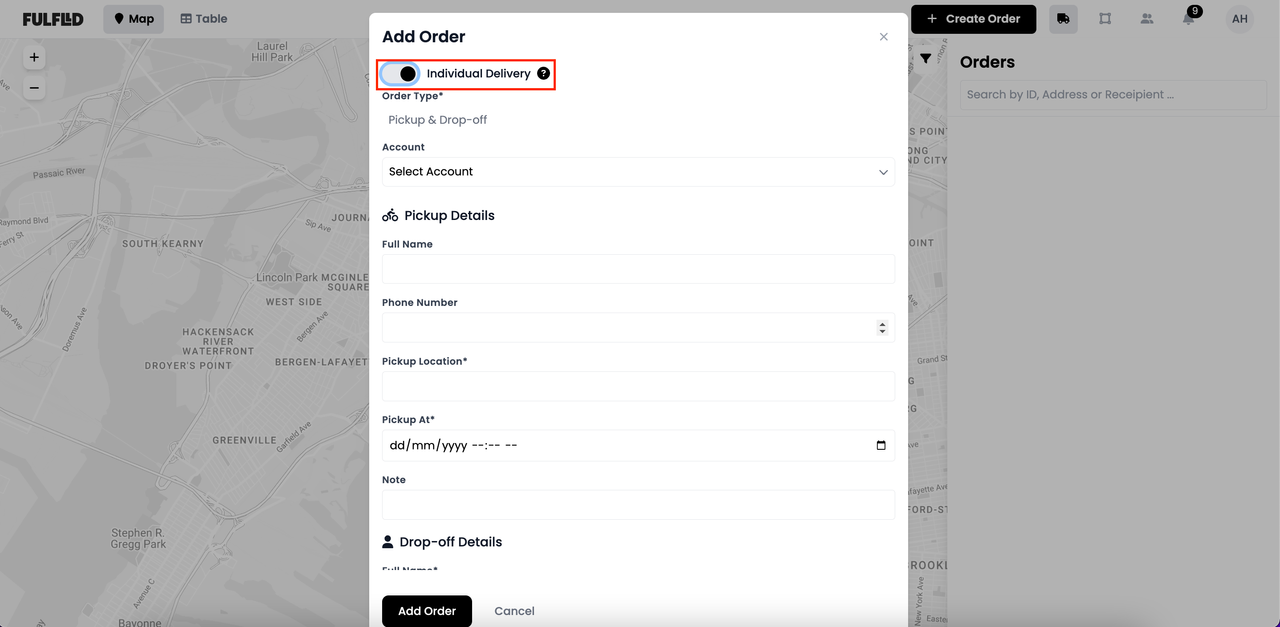
Toggle to switch on Individual Delivery from the top of the order creation form.
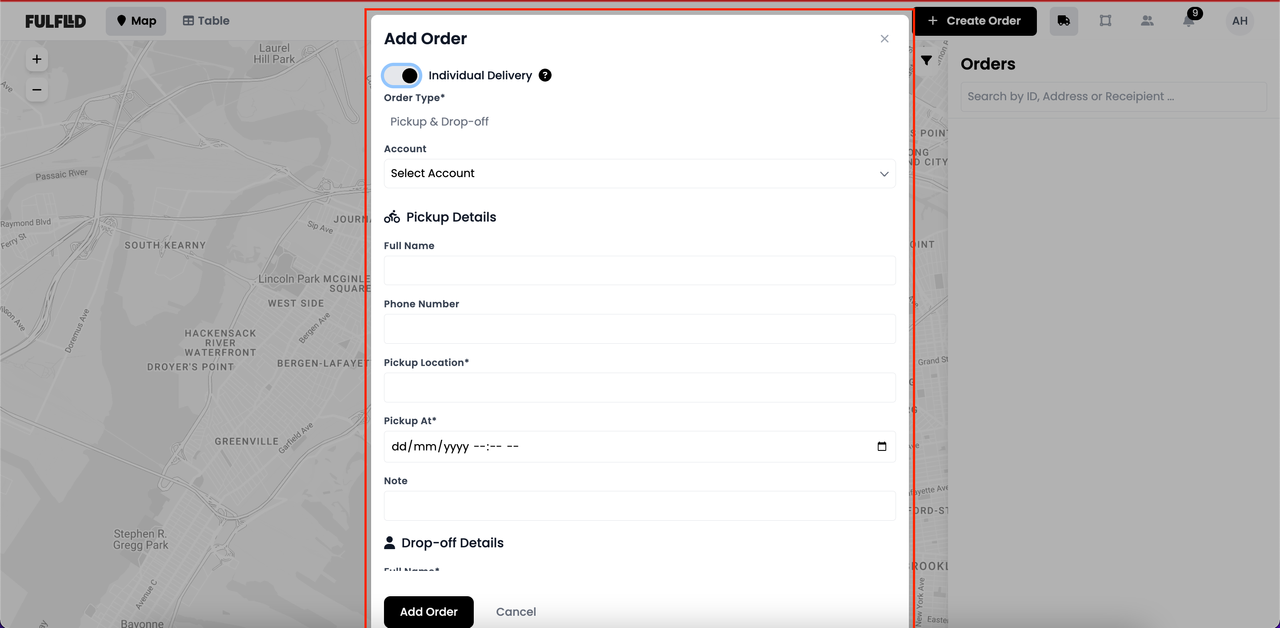
Fill in the details on the form to complete the order creation process.
- For individual deliveries, order type will be selected as “Pickup & Drop-off” by default
- Select an account for which the order will be created
- Add pick up location
- State the pickup time
- Add notes if applicable
- Add recipients full name
- Add recipients phone number
- State the delivery time
- Add drop off location
- Optionally add a note and/or delivery requirements
- Click the “Add Order” button to save the created order
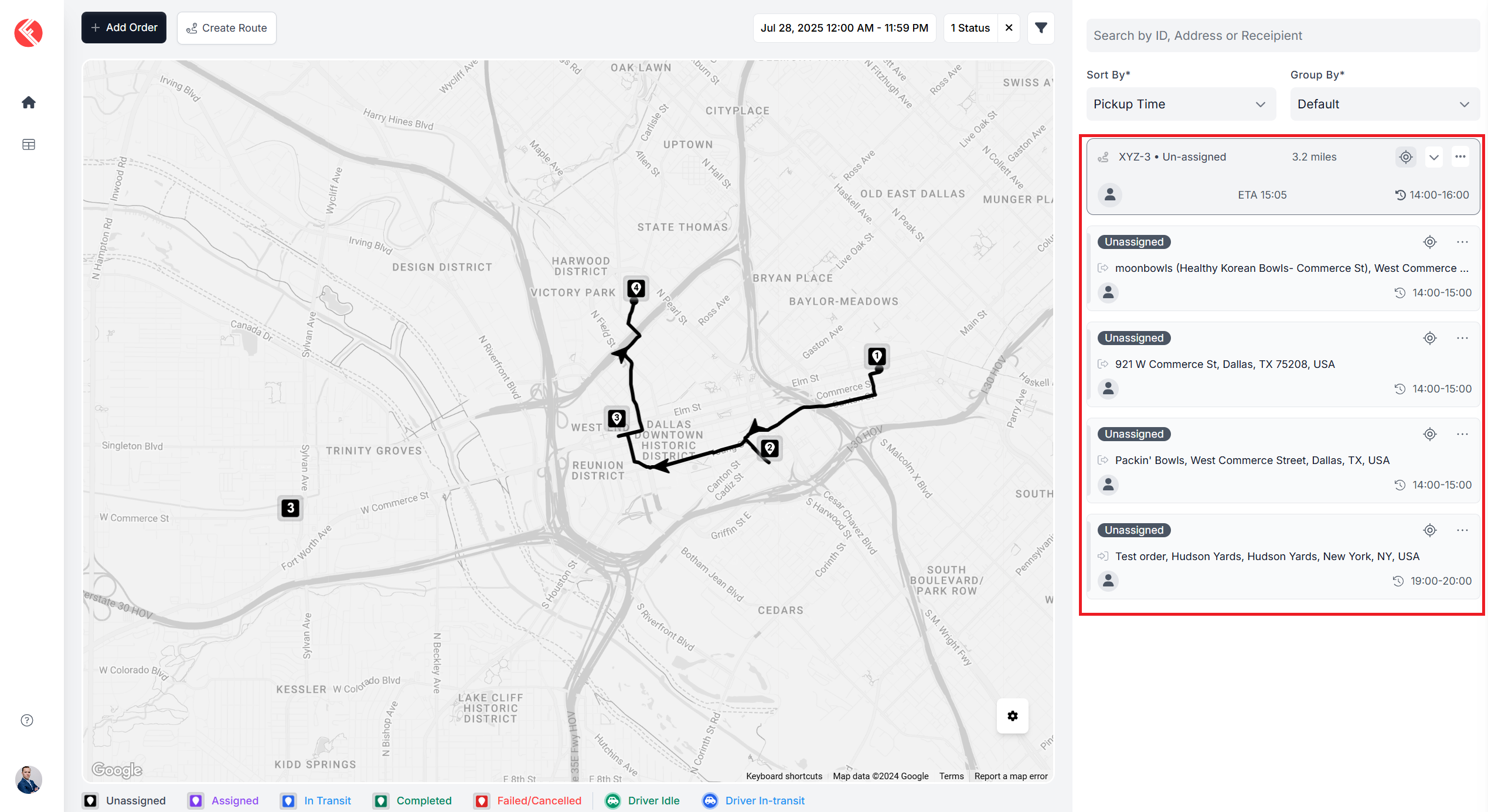
Once the order has been created, it will appear at the top of your right order panel.
Create a Route Based Delivery Order
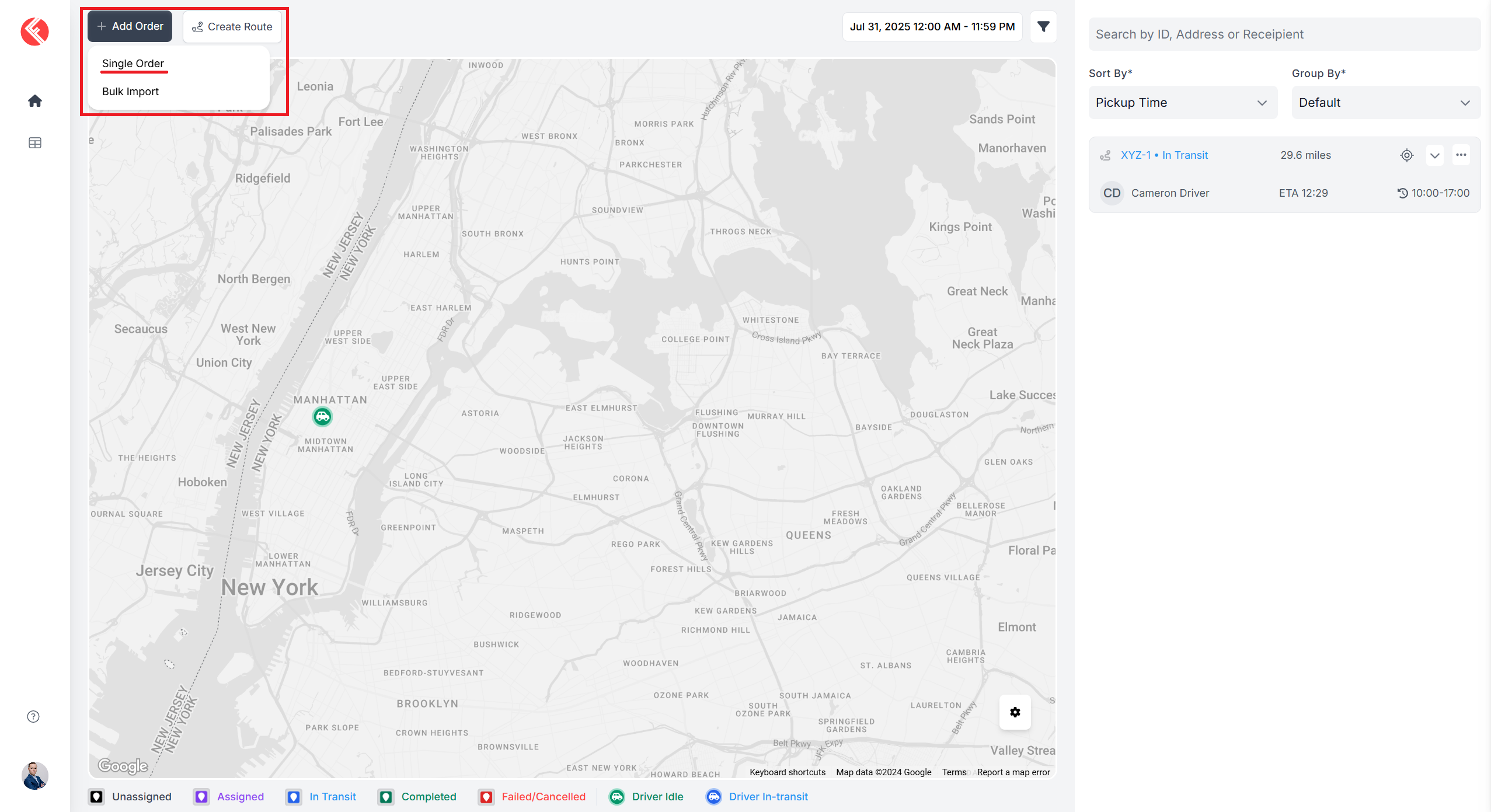
To create a routed order click on the “+ Add Order” in the top navigation bar and select a single order.
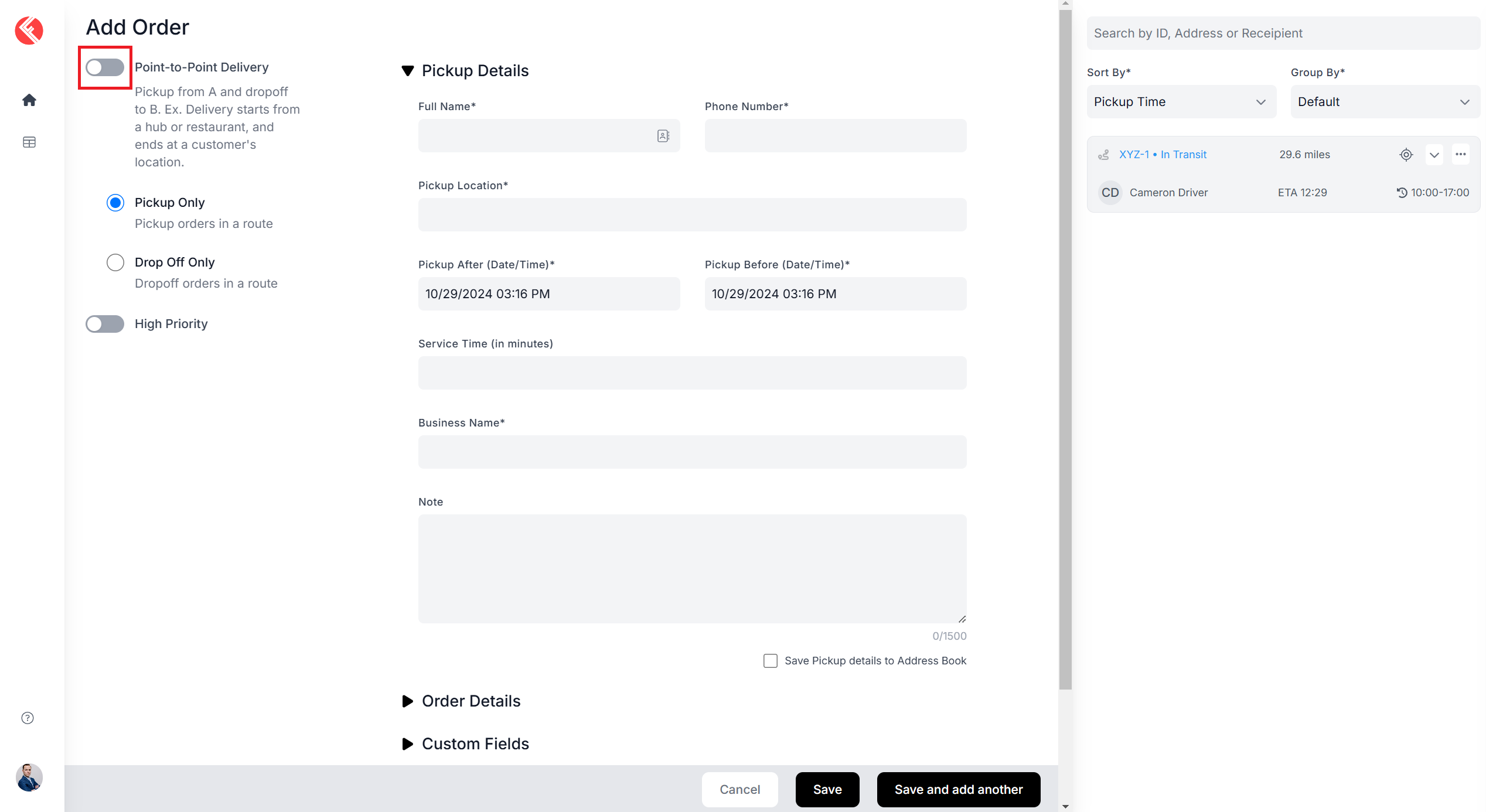
Toggle to switch off “Point to Point Delivery” from the top left of the order creation form.
Select the order type by selecting either “Pickup Only” or Drop Off Only”
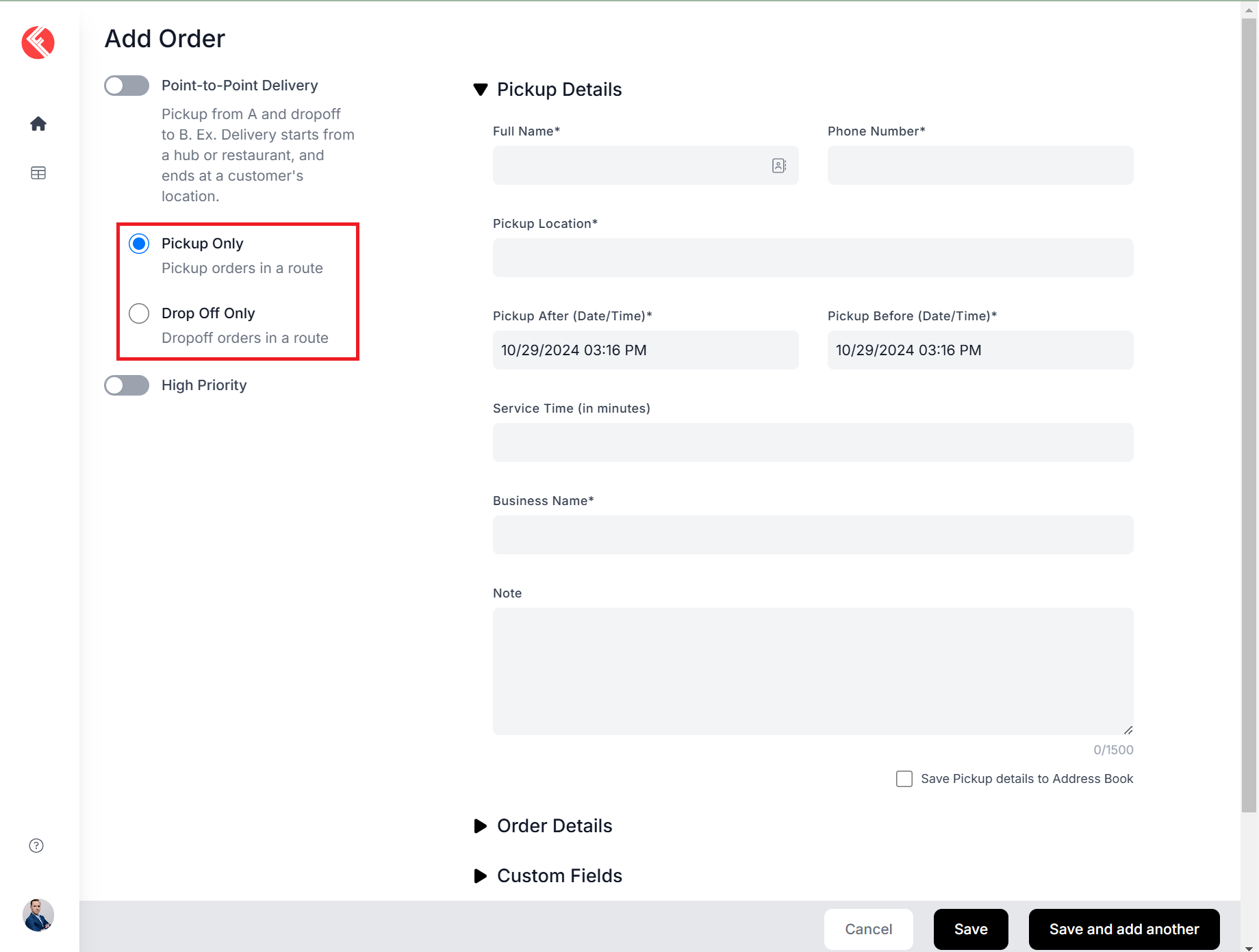
Pickup only
This order type can be used when you only want to add a pickup.
Drop-off only
This order type can be used when you only want to add a drop-off.
Pickup and Drop-off only
This can be selected if you wish to mark your order as high priority.
Fill out all required information in each section labeled “Pickup Details”, “Drop-off Details” or “Order Details” to complete the order creation process.
- Optionally add a note and/or delivery requirements
- Click “Save” button to save the order
- Click “Save and add another” if you wish to add more orders
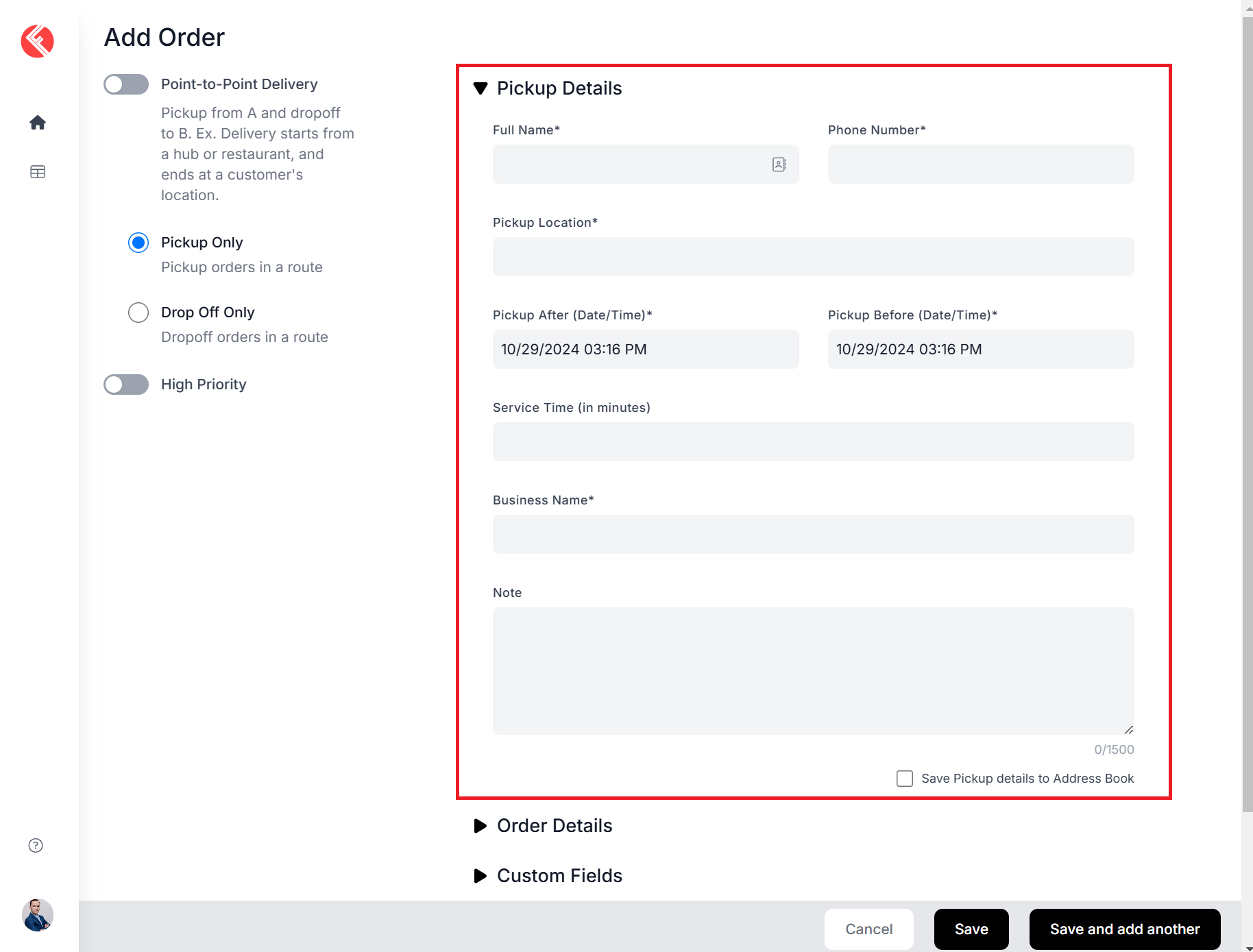
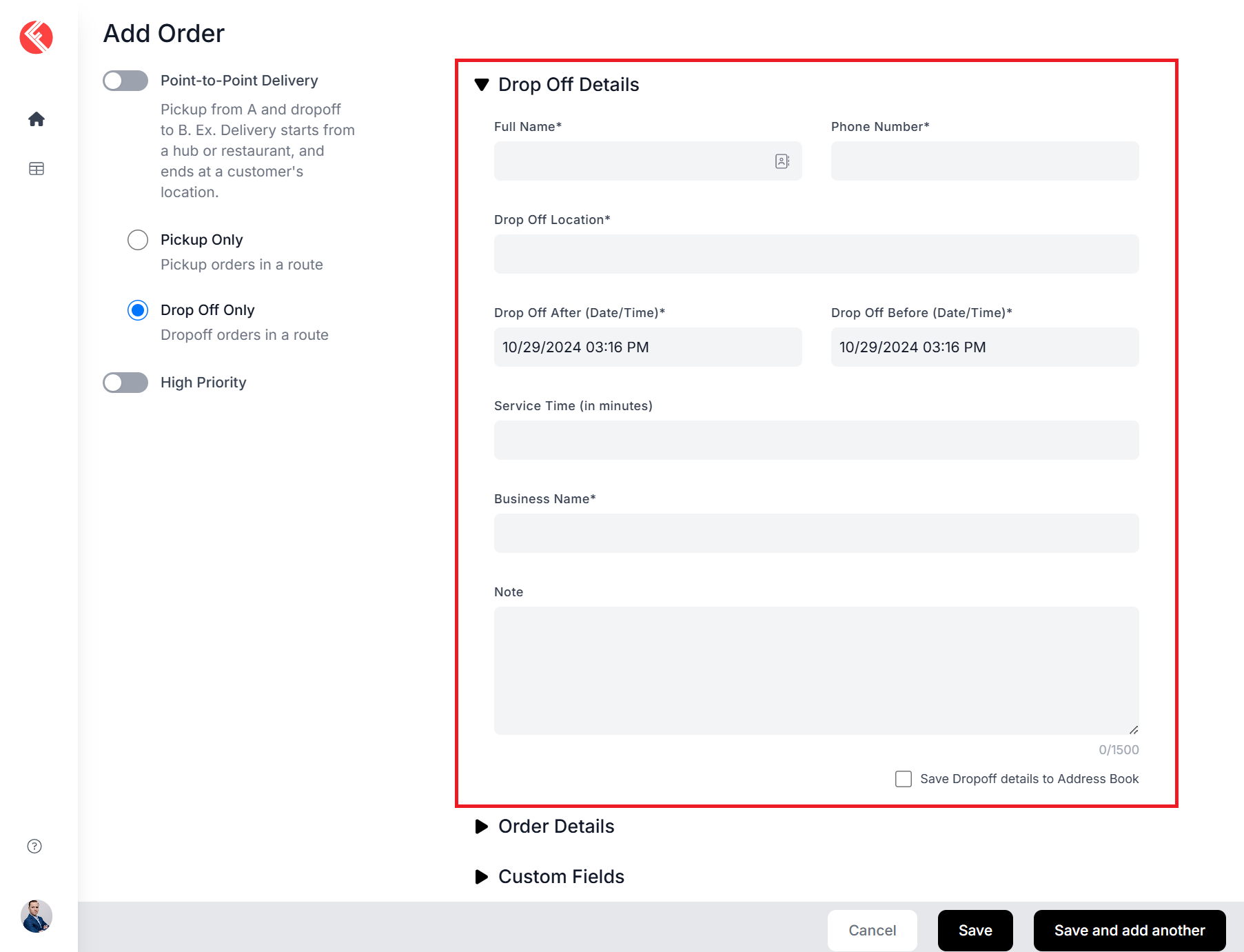
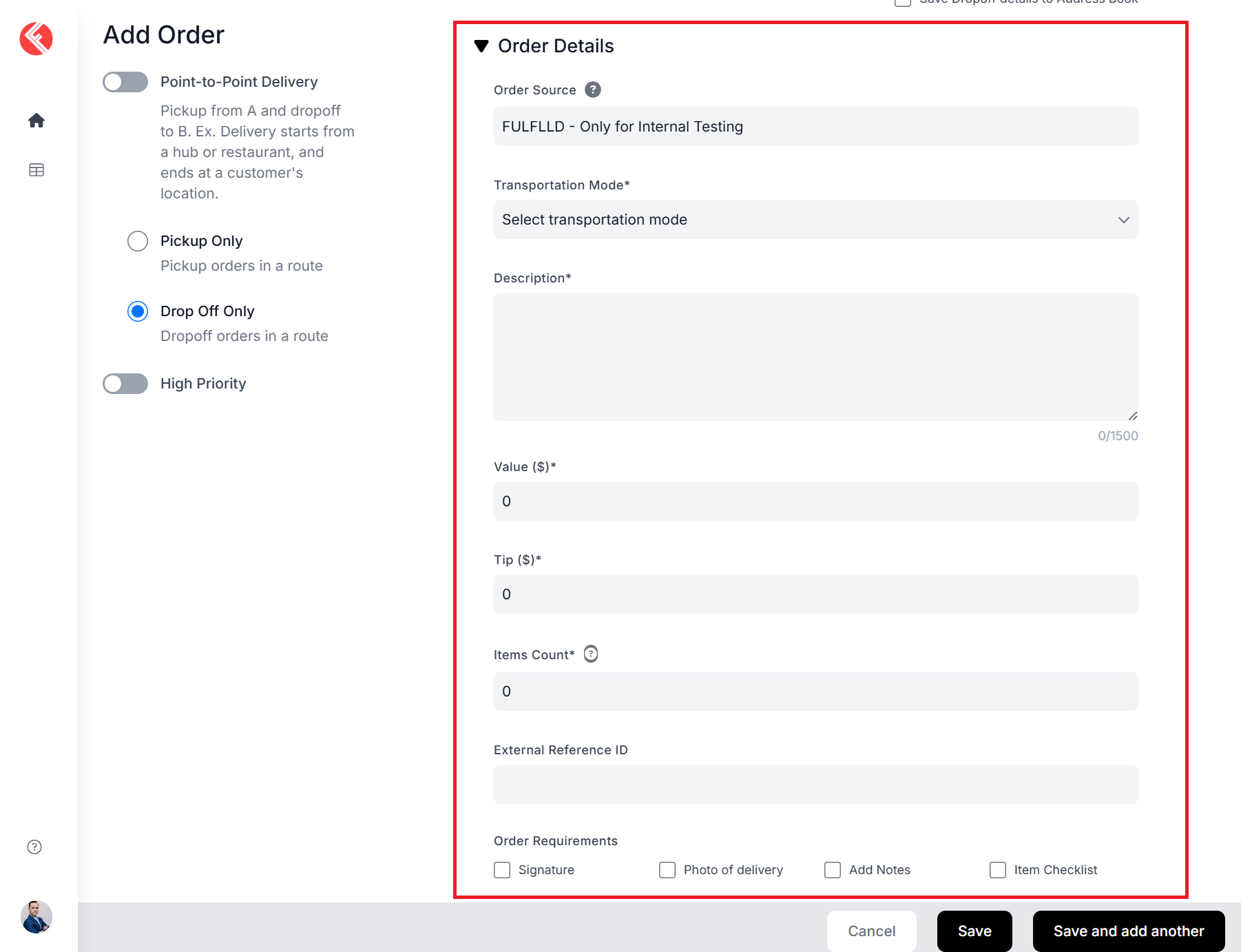
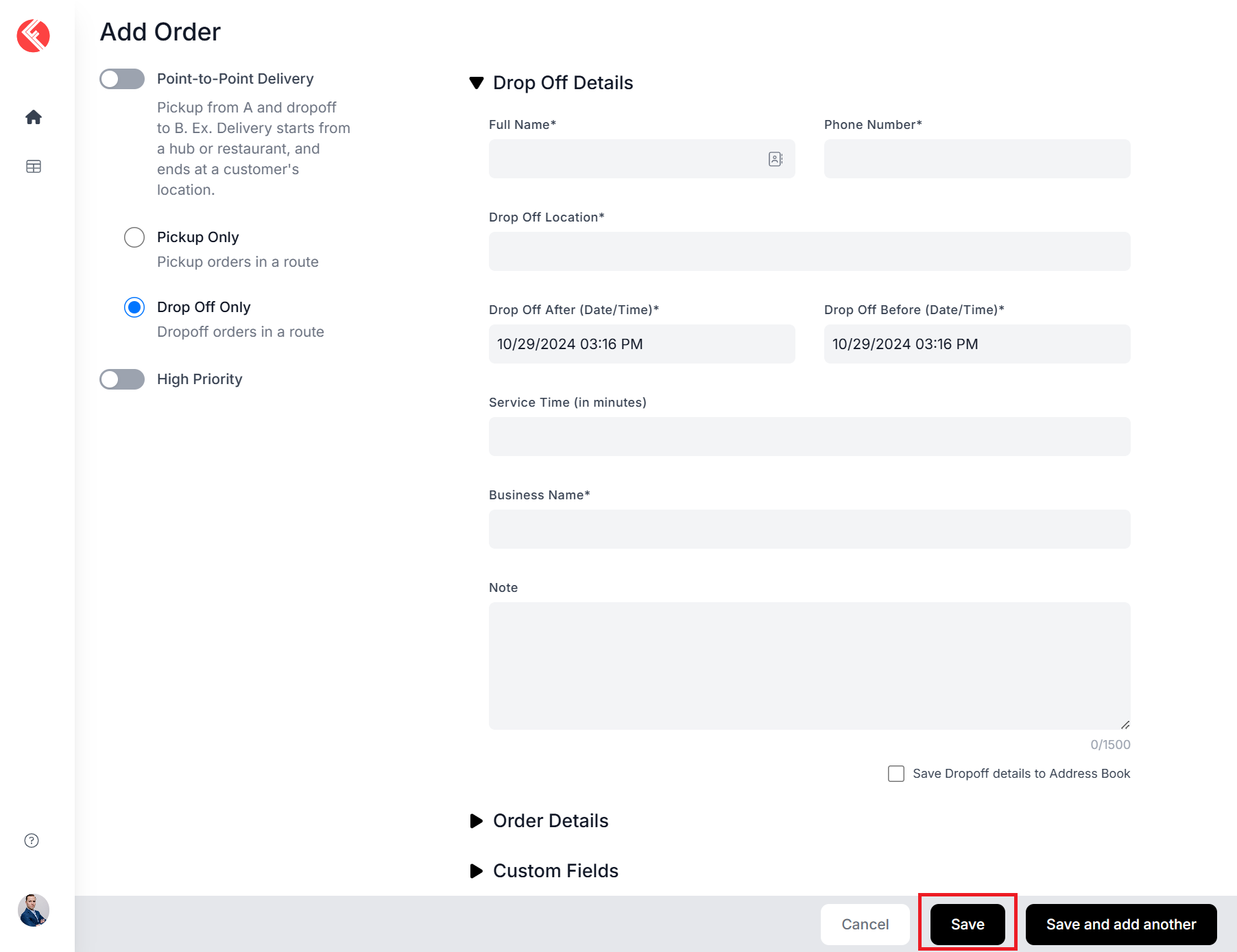
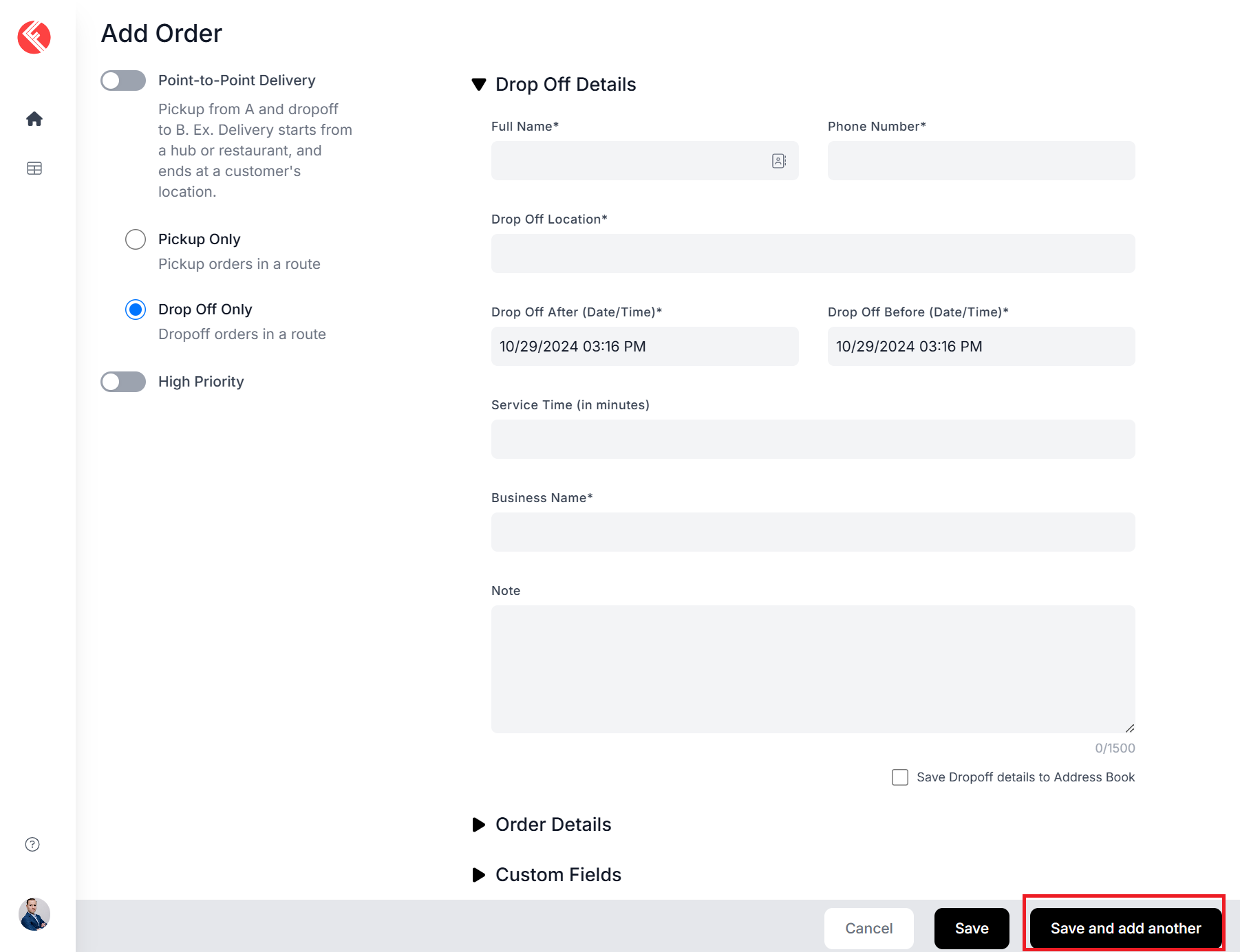
Once the order has been created, it will appear at the top of your right order panel.
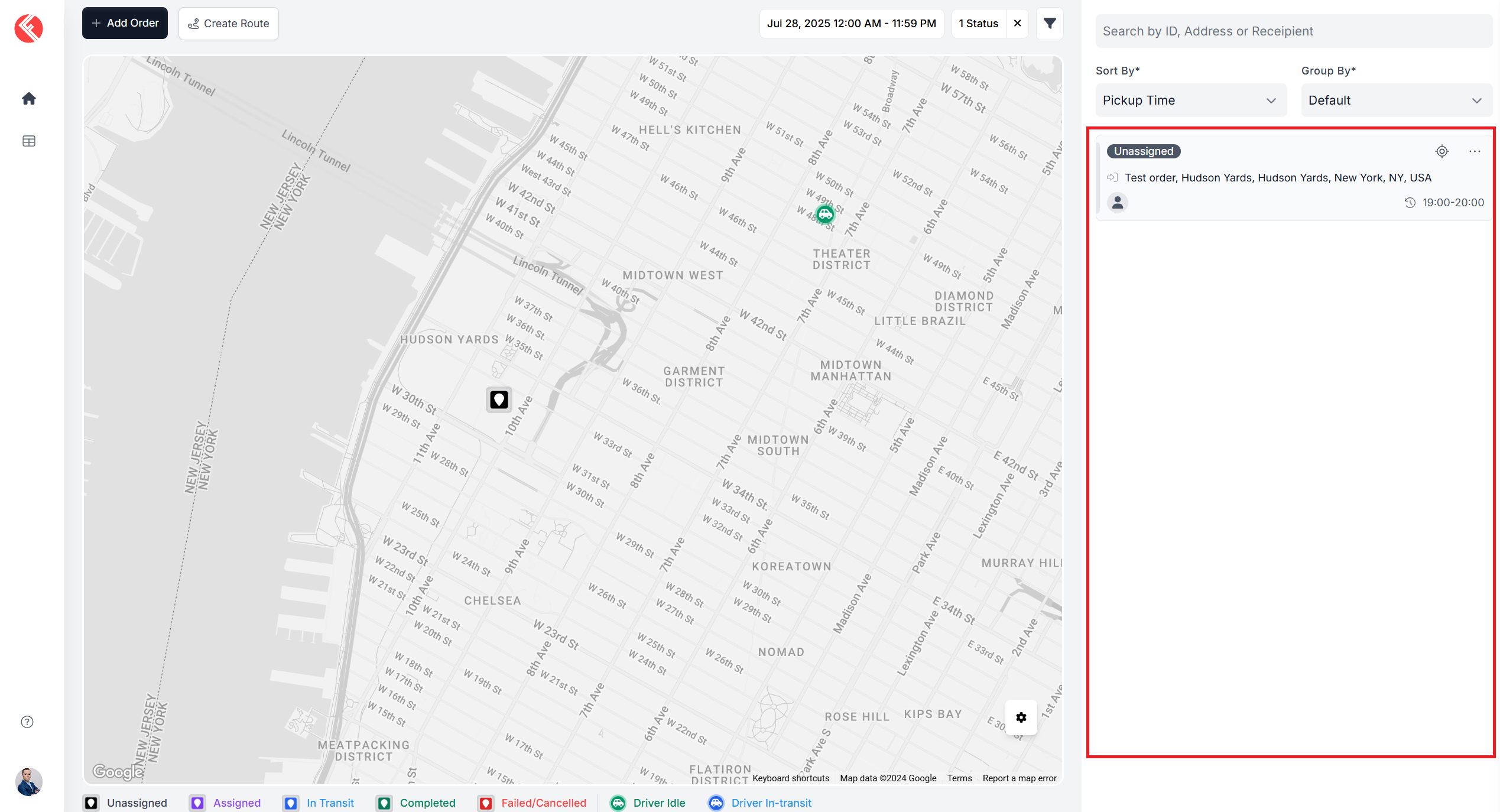
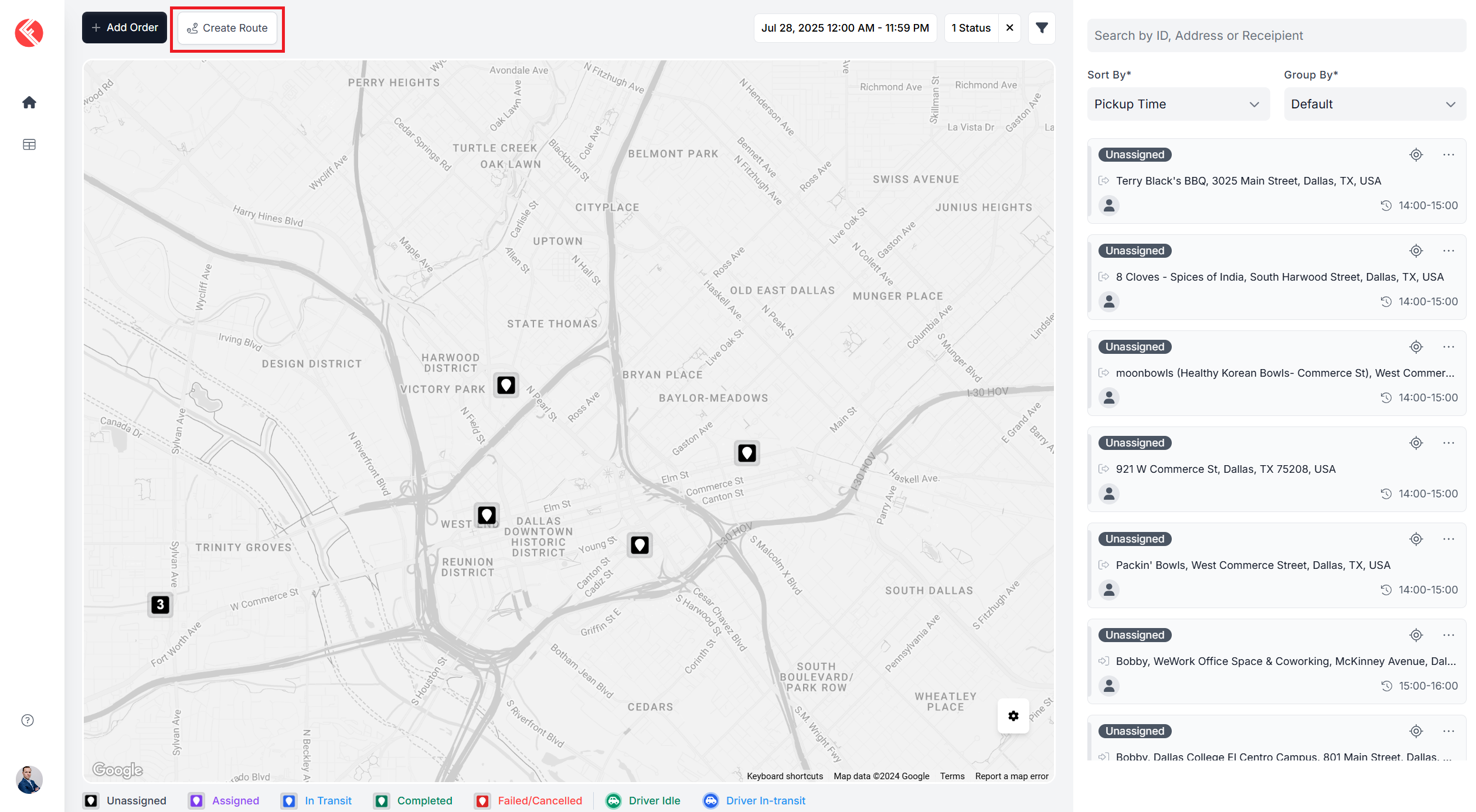
Route Creation:
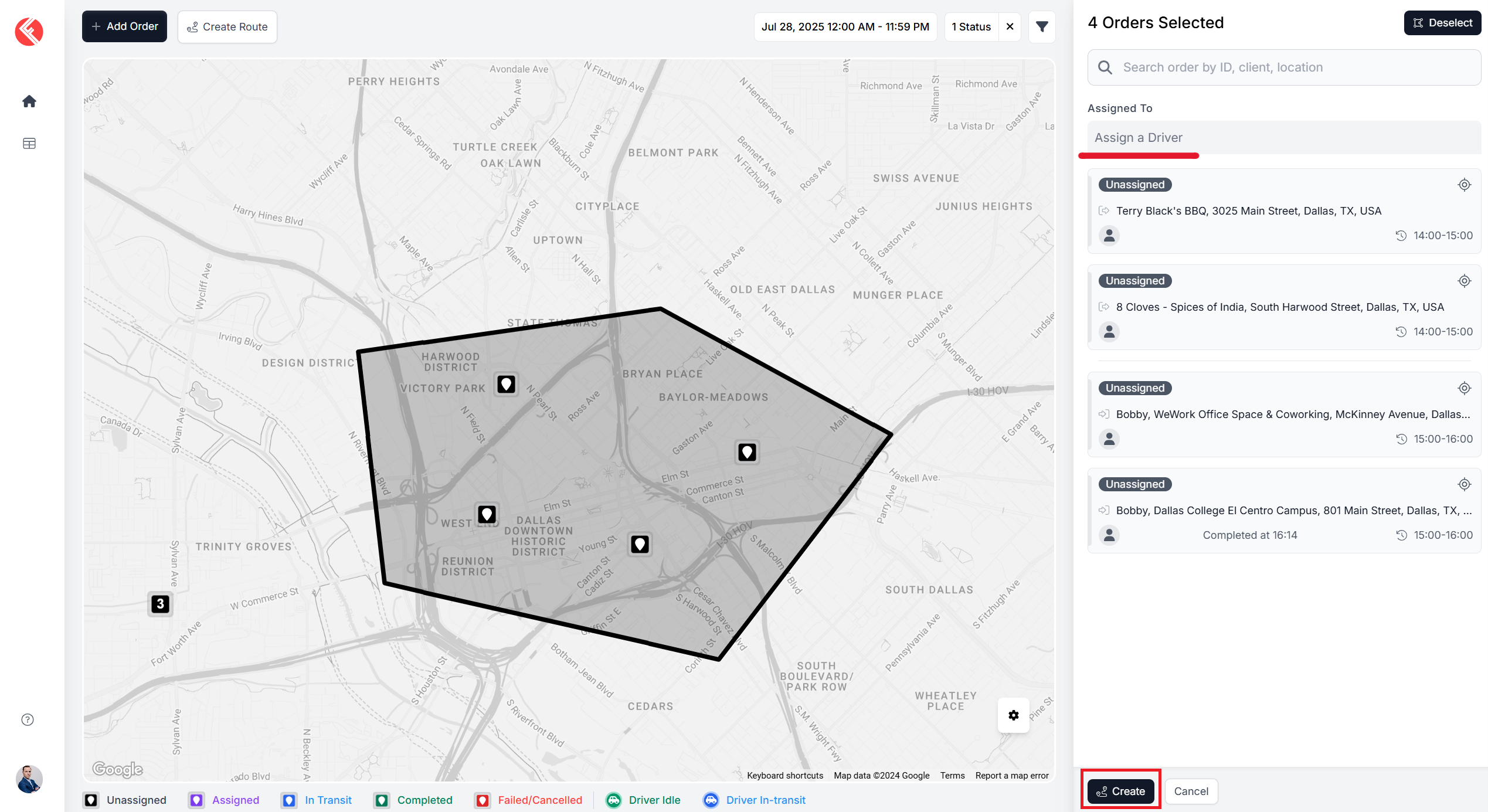
Click on the “Create Route” button.
Select orders by individually clicking on them from the map or select “draw polygon” to draw a polygon around them.
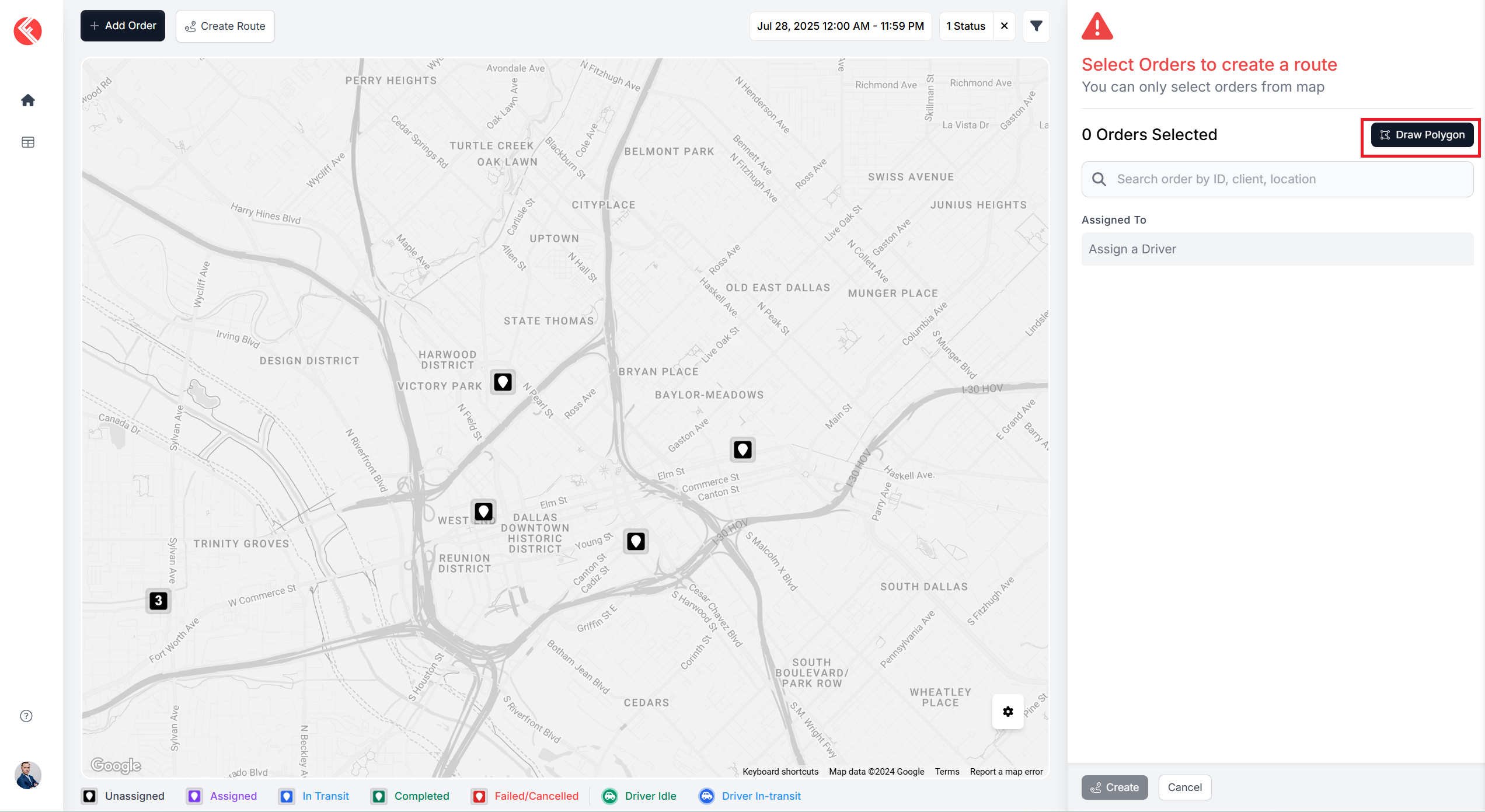
Once orders are selected, click “Create”. You have the option to assign a driver now or later.
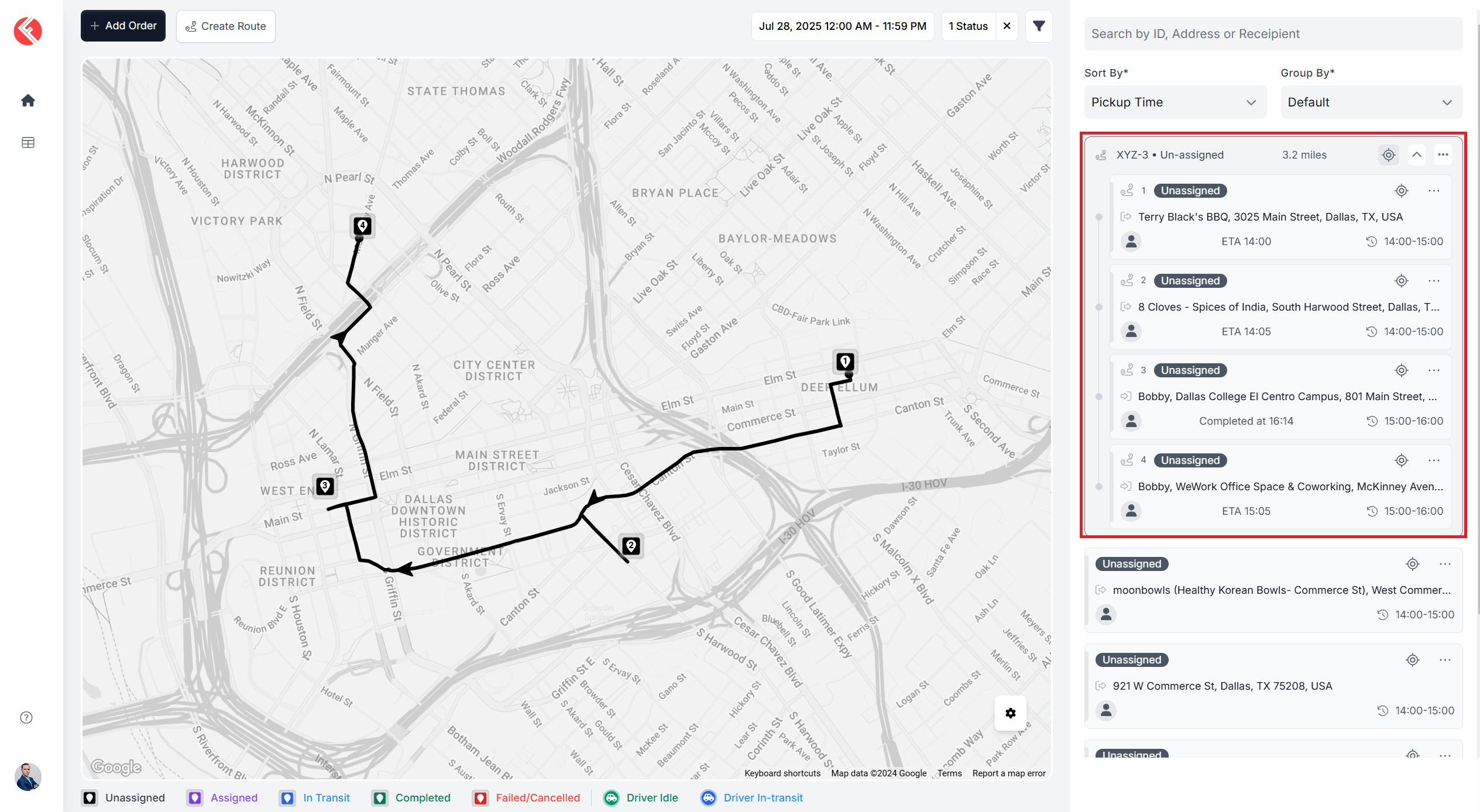
Find your route in the order panel
Bulk Order Creation:
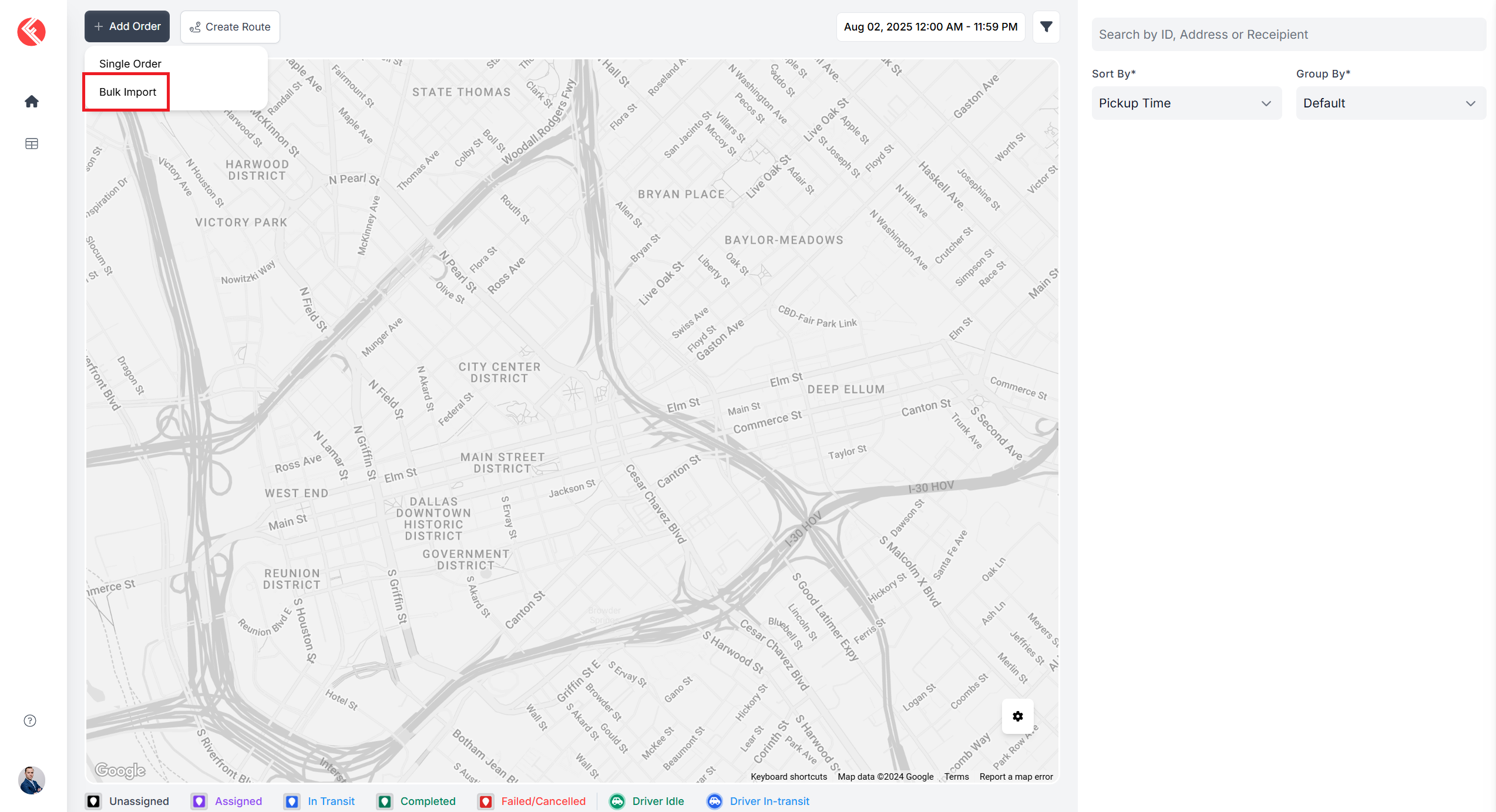
Click on the “Add Order” button and select “Bulk Import” from the dropdown.
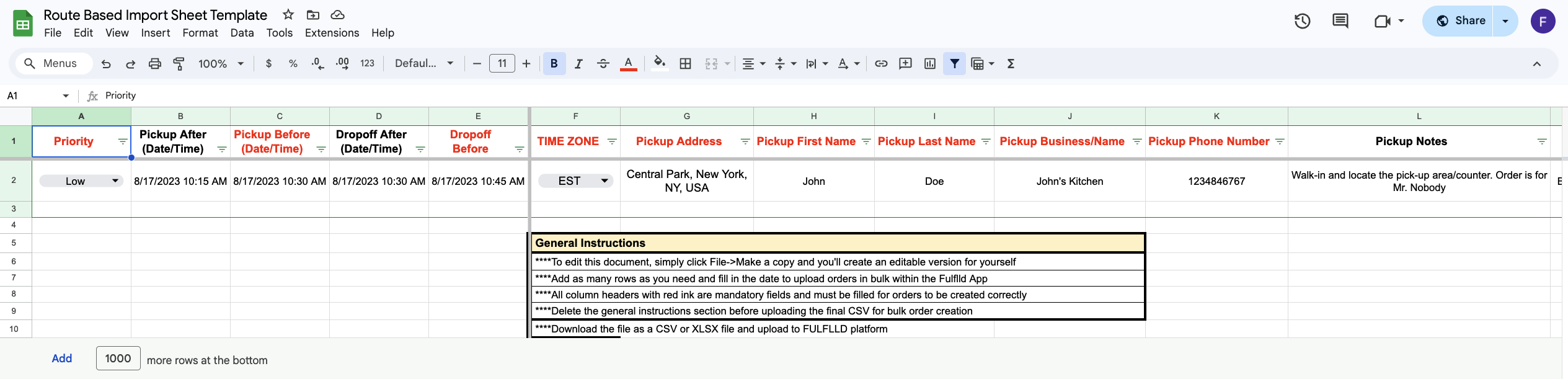
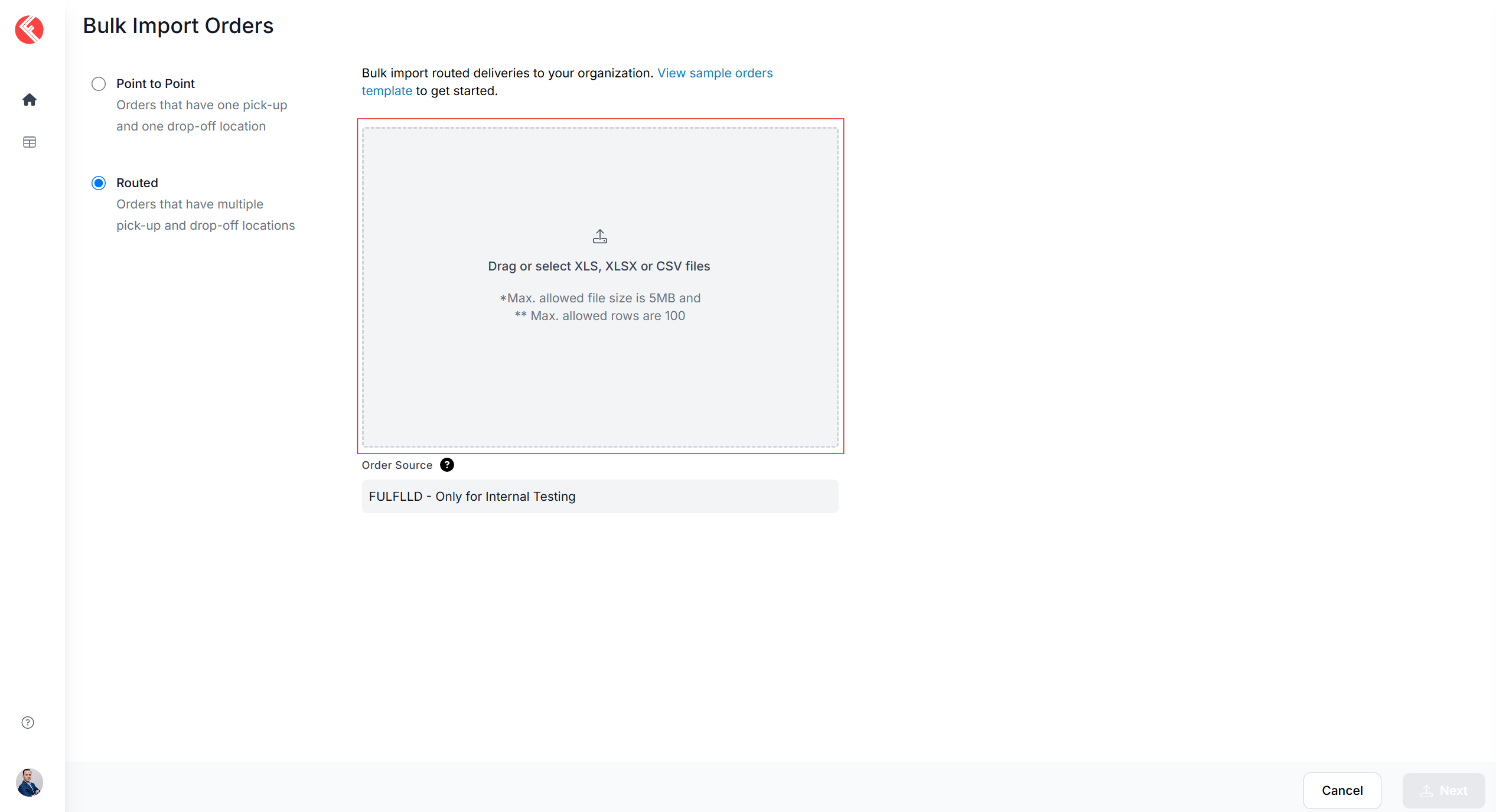
Select the type of orders you wish to import by selecting “Point to Point” or “Routed” and click on the “View sample orders template”.
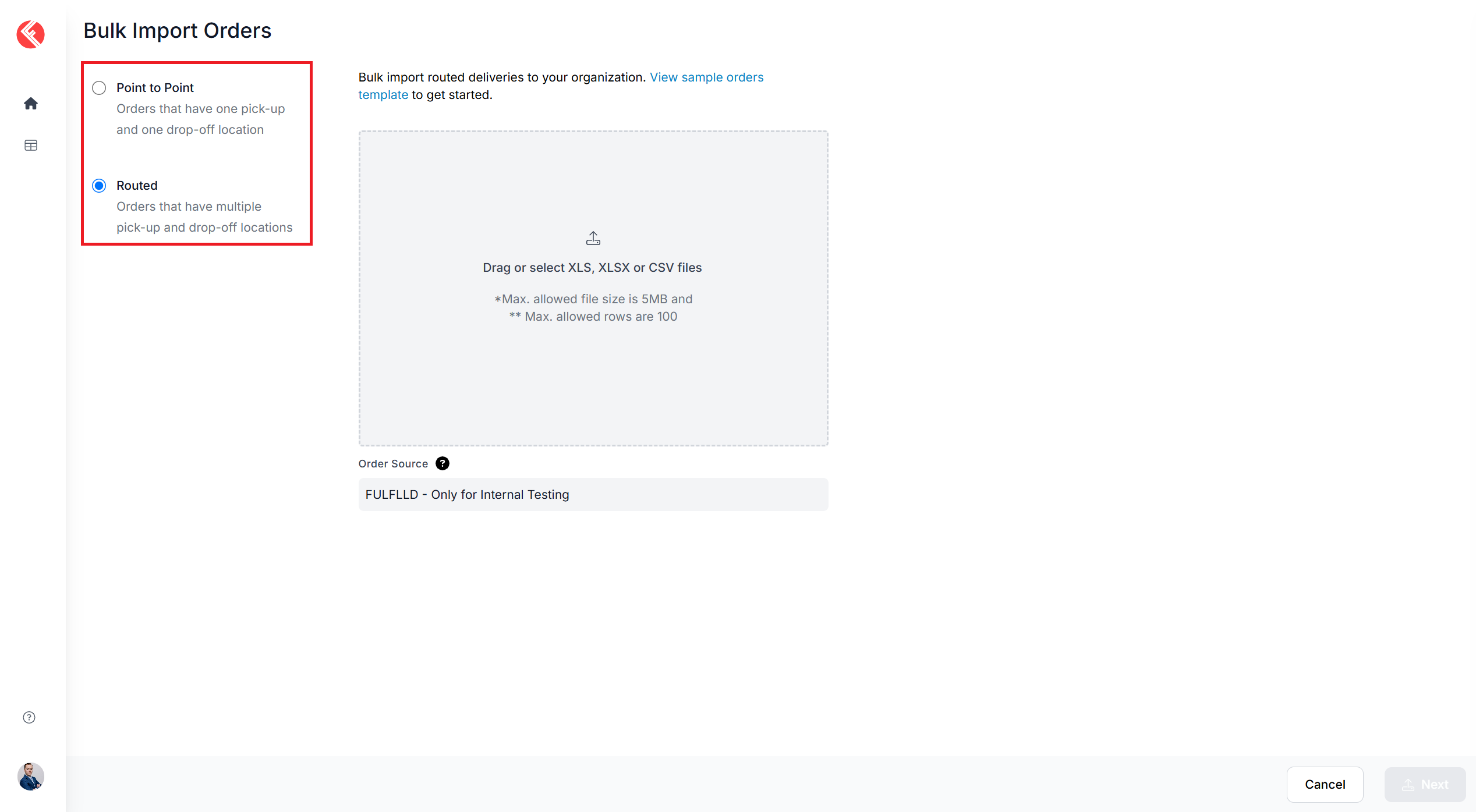
An Excel sheet will open on a different tab, follow the instructions on the sheet to create your orders.
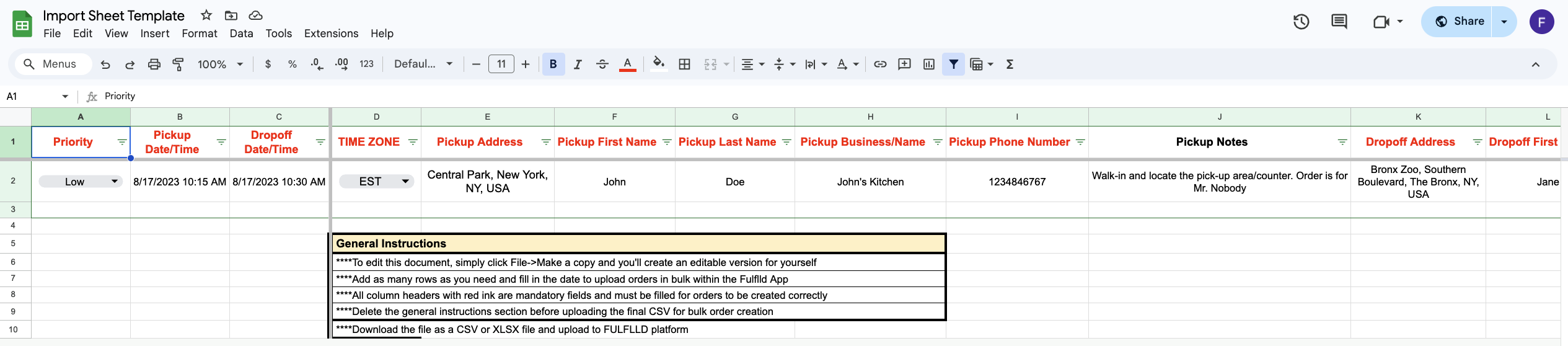
Add your orders to the copy of the Excel sheet.
Come back to the platform and upload the sheet under your selected order type, and click Import.
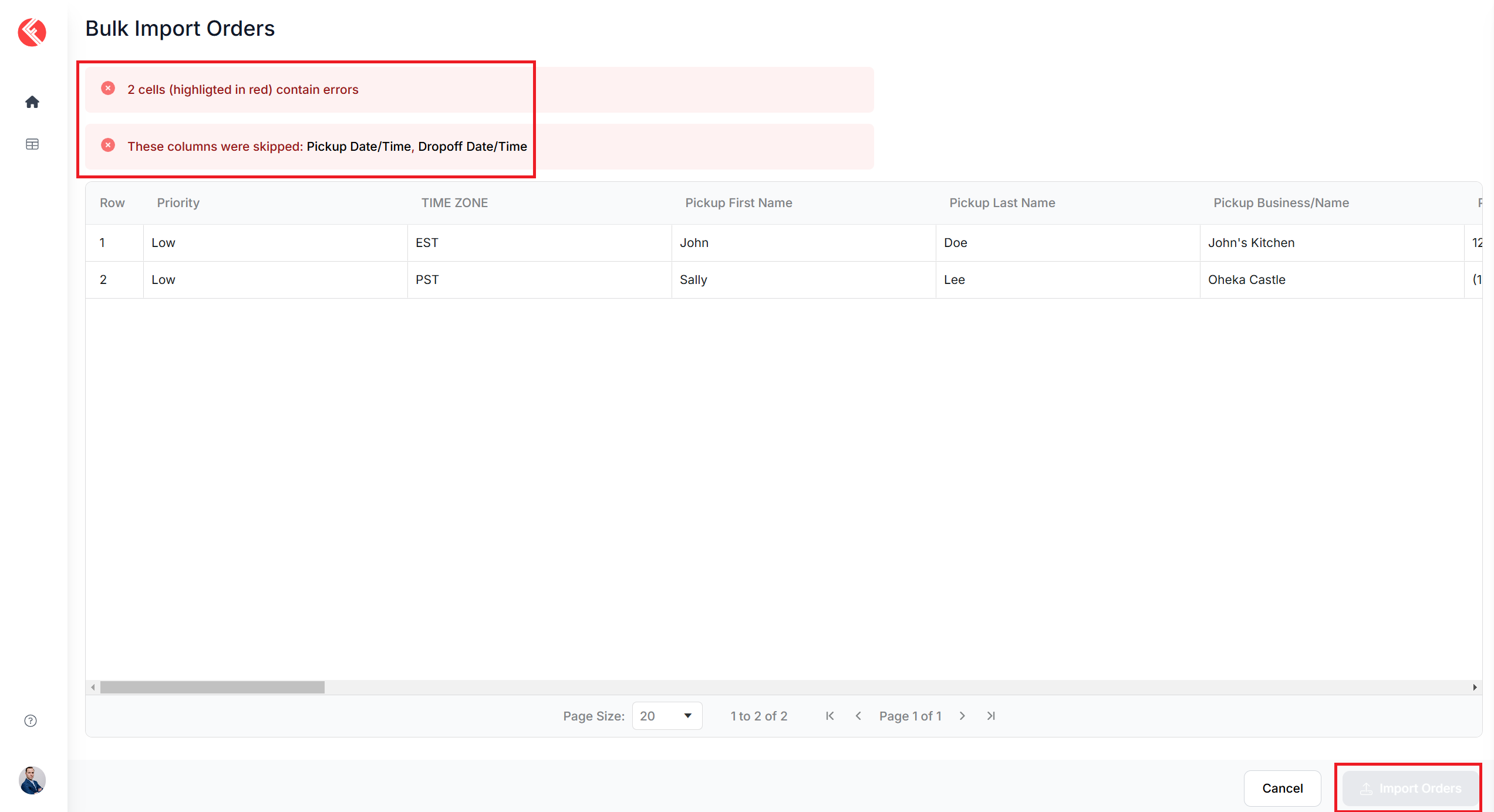
Address any identified errors and then select “Import Orders”.
Find your orders in the order panel.