Features
Accounts
What is an account?
An Account/Client is an individual or organisational entity that utilises the FULFLLD Application to facilitate the management of their orders, delivery tracking, and related processes. Using the application, the entity will have full access to their data and maintain order details, delivery status and reports, outposts and associated drivers.
Getting started on creating an Account
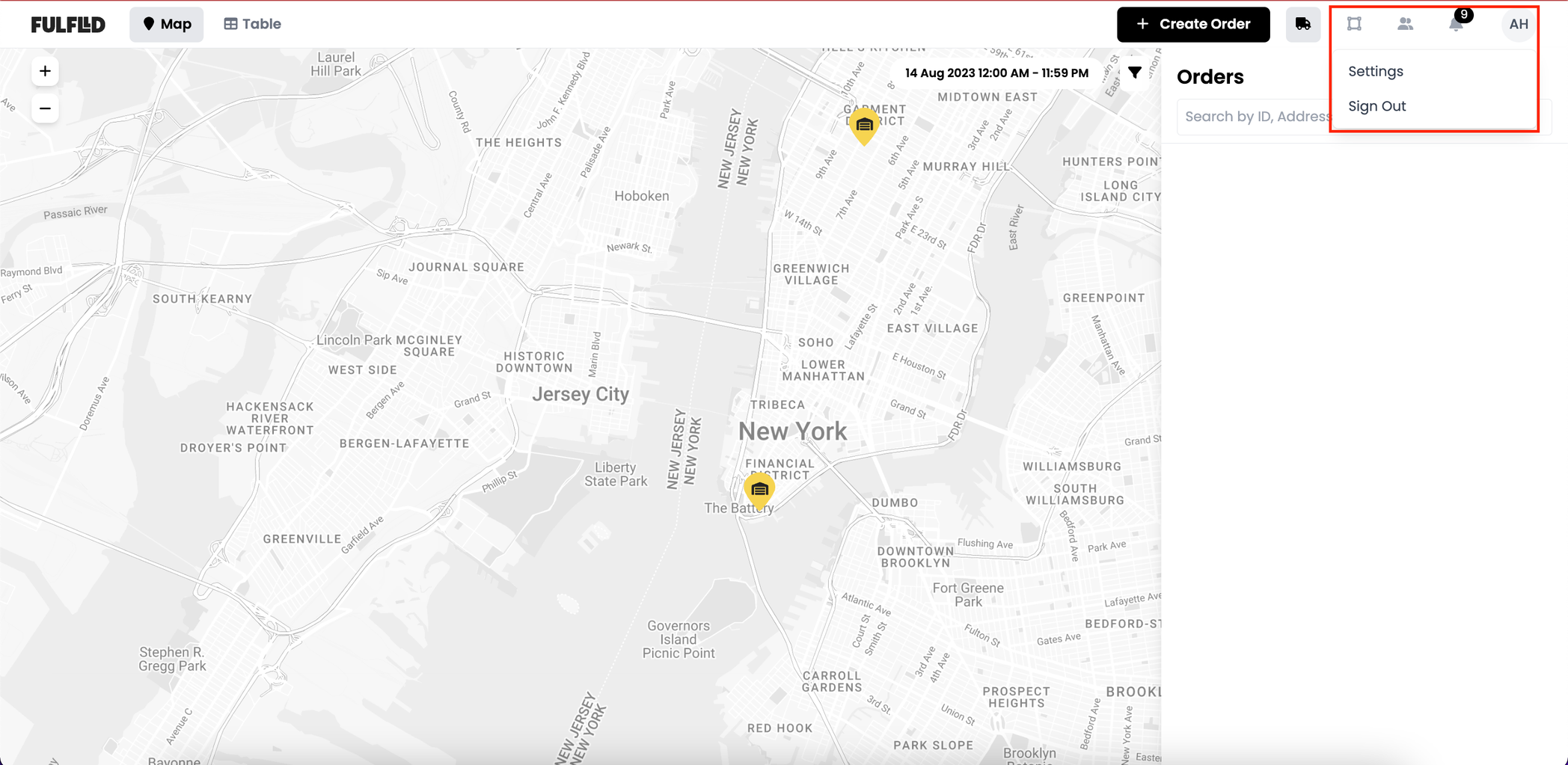
Click on your avatar at the top right corner of your screen and navigate to the “Settings” page.
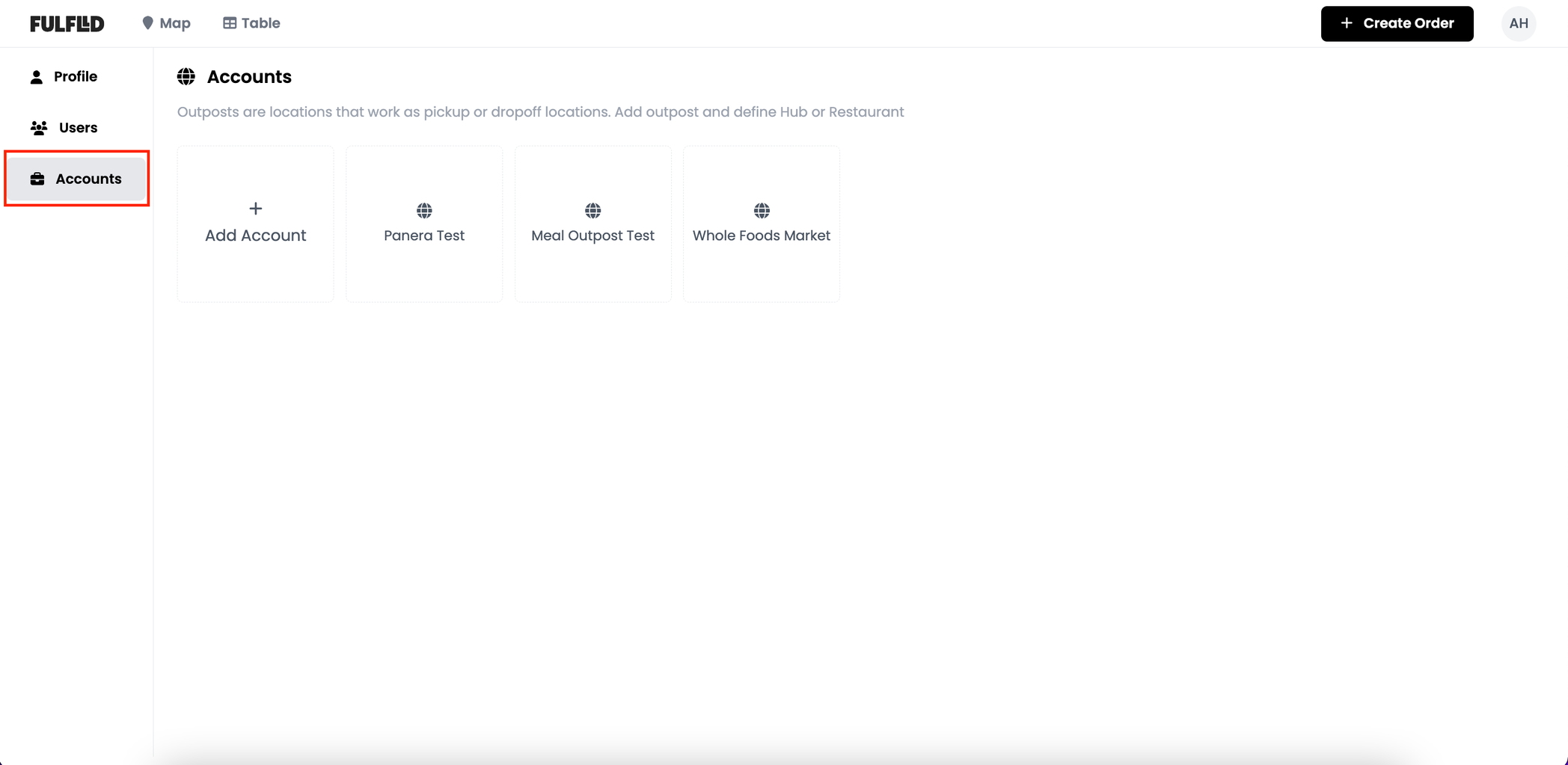
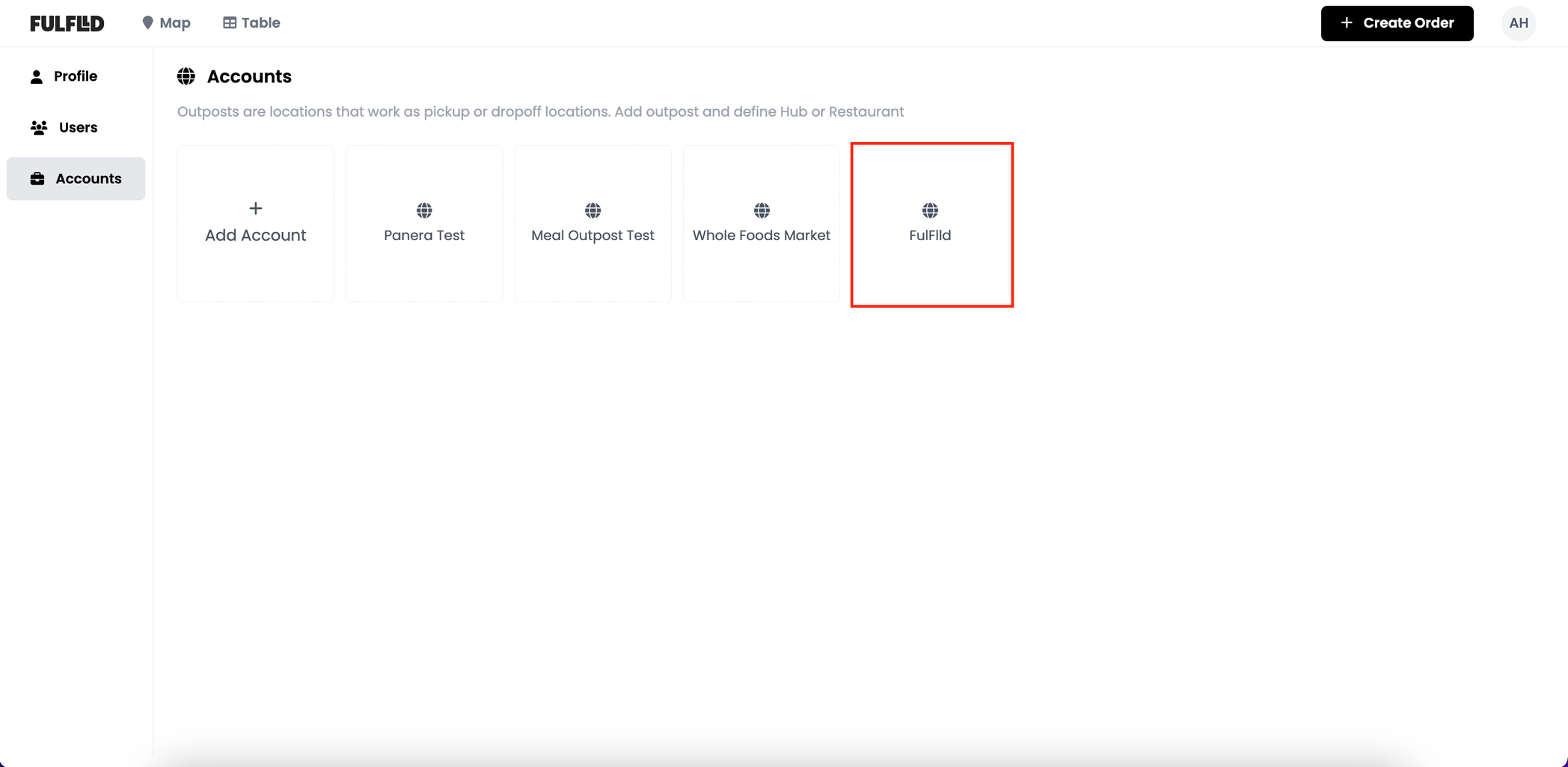
From the “Settings” page, navigate to the “Accounts” tab and click the “Add Account” button to get started on creating a new account.
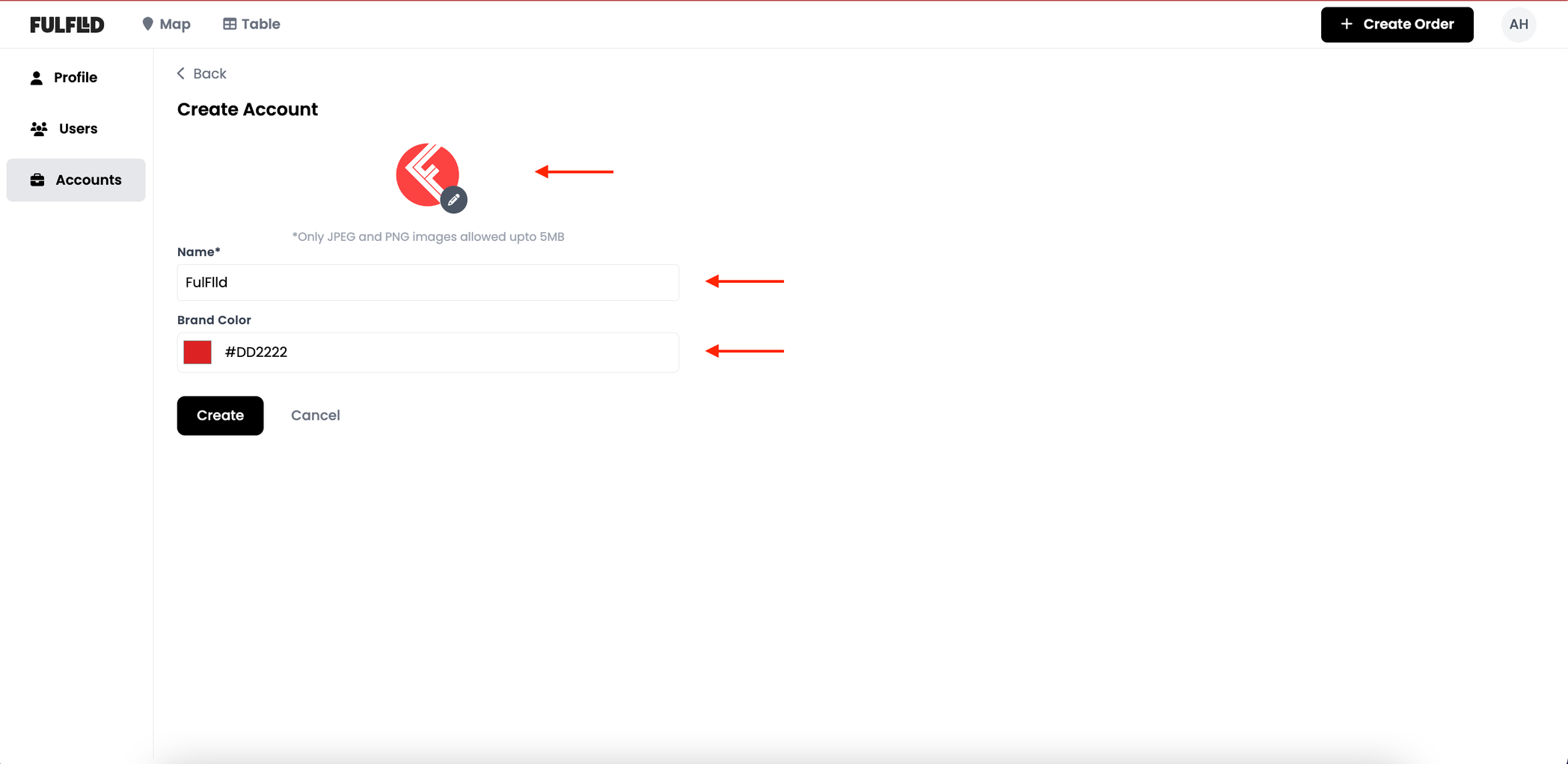
Add in the following details and click on the “Create” button.
- Logo
- Name
- Brand Colour
Once the account has been created, it will sow up on your list of accounts. You can also click through to make changes within the account and can add or edit outposts, users, etc.
Adding a Hub/Restaurant to an Account
From within the Account Settings, you can navigate to the “Outposts” tab to add/edit a hub or restaurant for the account.
Hub
A hub is a physical or virtual centre that serves as a focal point for receiving, processing, and dispatching orders to customers. It acts as an intermediary between restaurants, delivery drivers, and customers, facilitating the smooth execution of food delivery operations.
Restaurant
A restaurant is a commercial establishment that prepares and packages a range of food and drink items to deliver to customers. These establishments facilitate the delivery or pickup of food orders through the Fulflld platform.
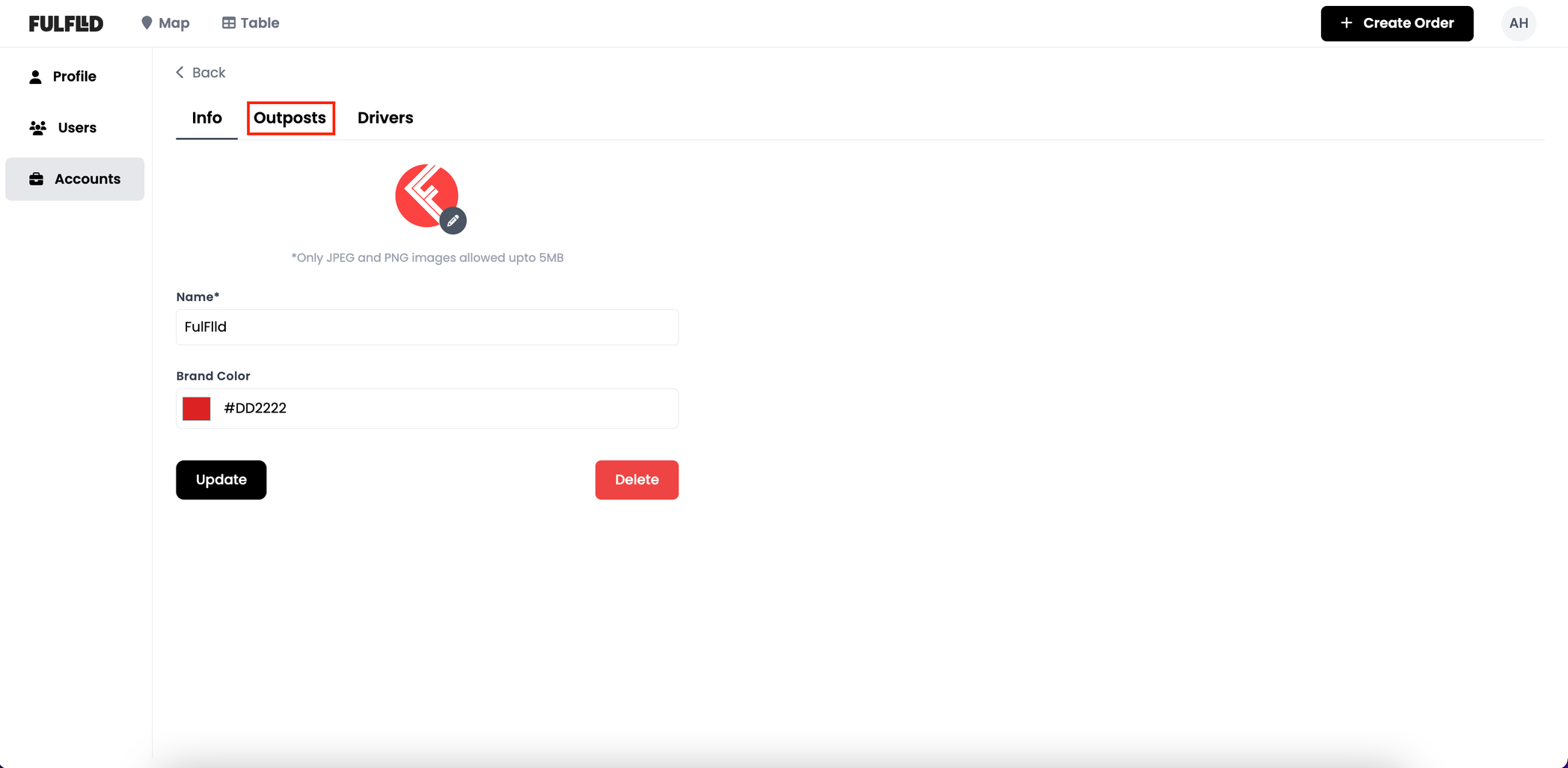
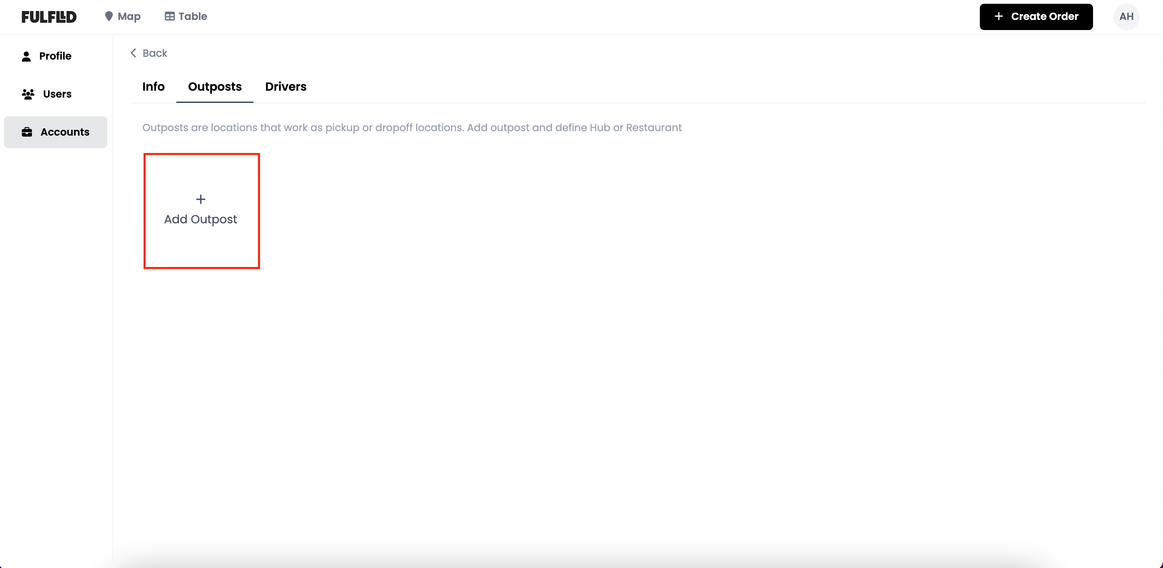
From the “Outpost” tab, click “Add Outpost” to add a hub or restaurant to the account. In future, you can refer to these outposts while scheduling or managing deliveries as the focal point of your pickup or route optimisation.
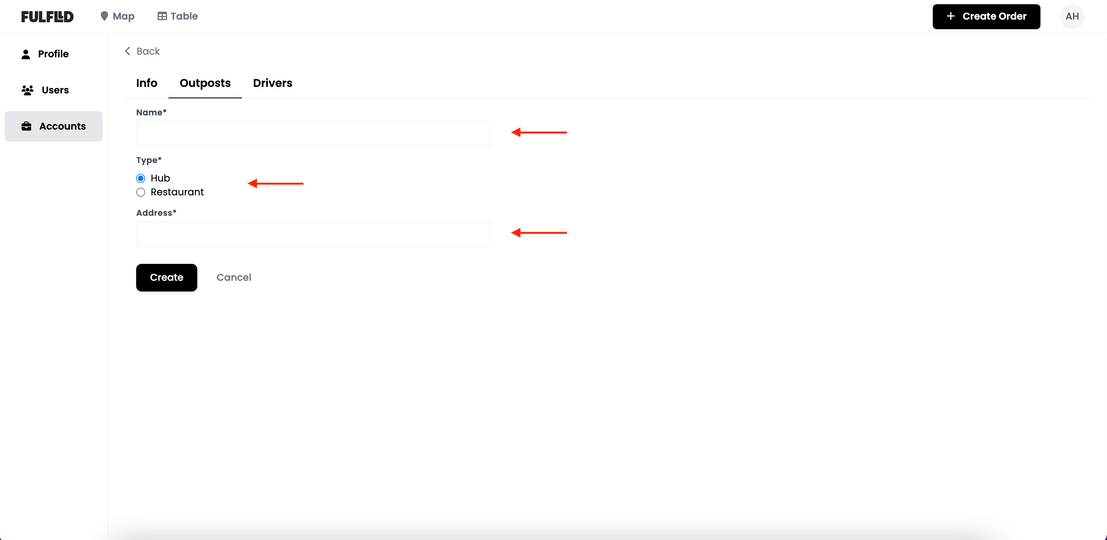
Fill in the following details and click the “Create” button to add your outpost to the account:
- Name
- Type
- Address
Associating drivers to an Account
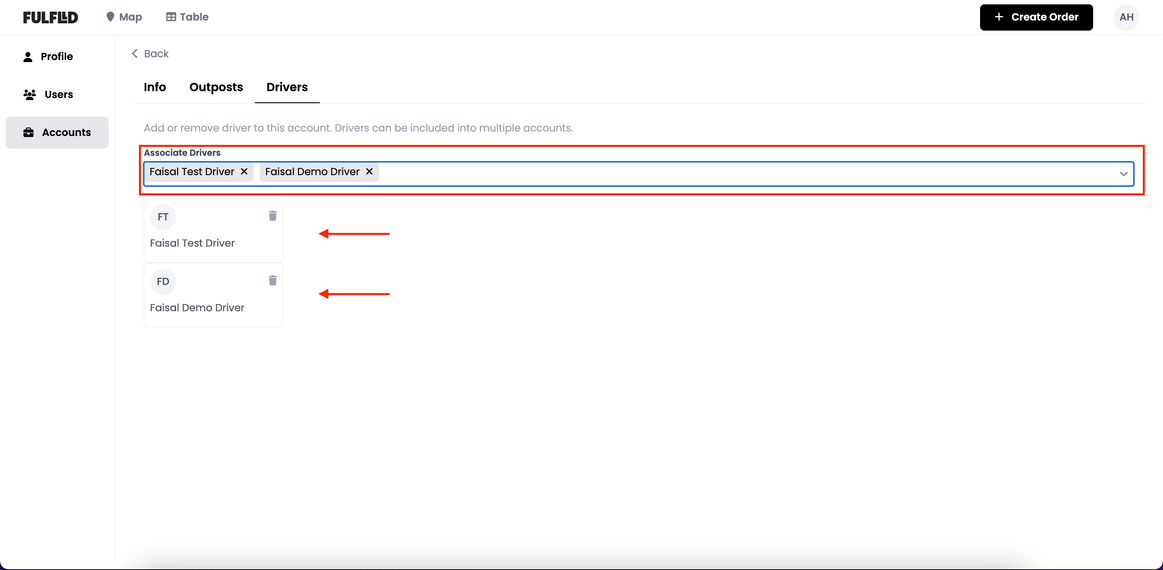
You can also navigate to the “Drivers” tab to associate/disassociate drivers from the account. Once associated, these drivers will appear in the list of drivers eligible for order assignment for this account.
View/Create/Edit users for an Account
- Navigate to the “User” tab
- Navigate to “Account Users” to view details of users for individual accounts
- Select the account from the drop down menu on the right hand side
- Use the “Search bar” to search for individual users within the account
- Click on the “Add User” button to add new users to an account
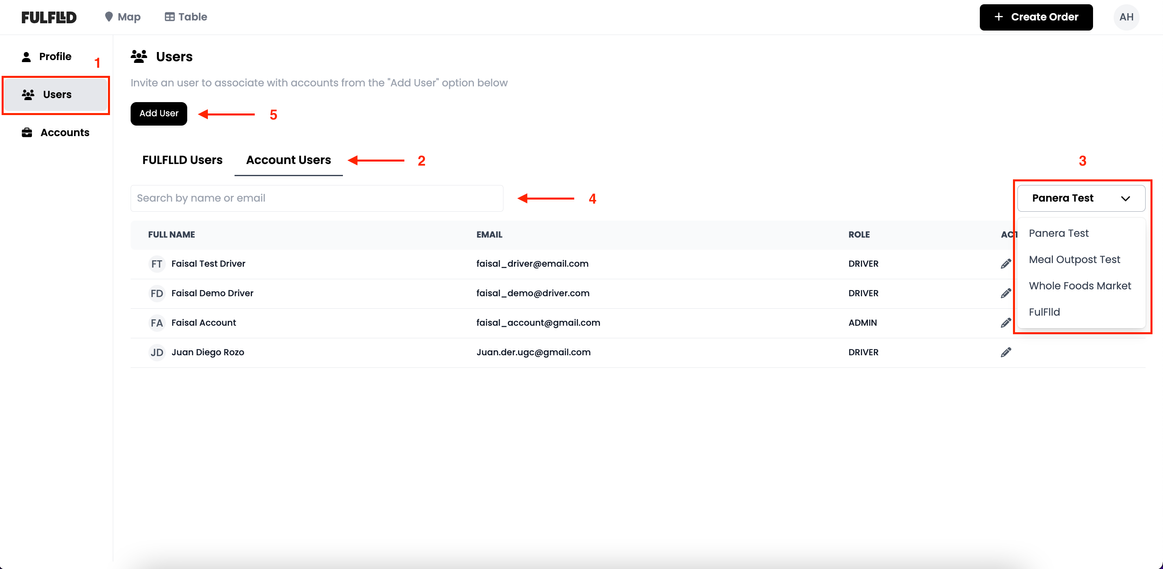
The user table will allow you to view all users and drivers associated with this account from one single table for convenience in user management.
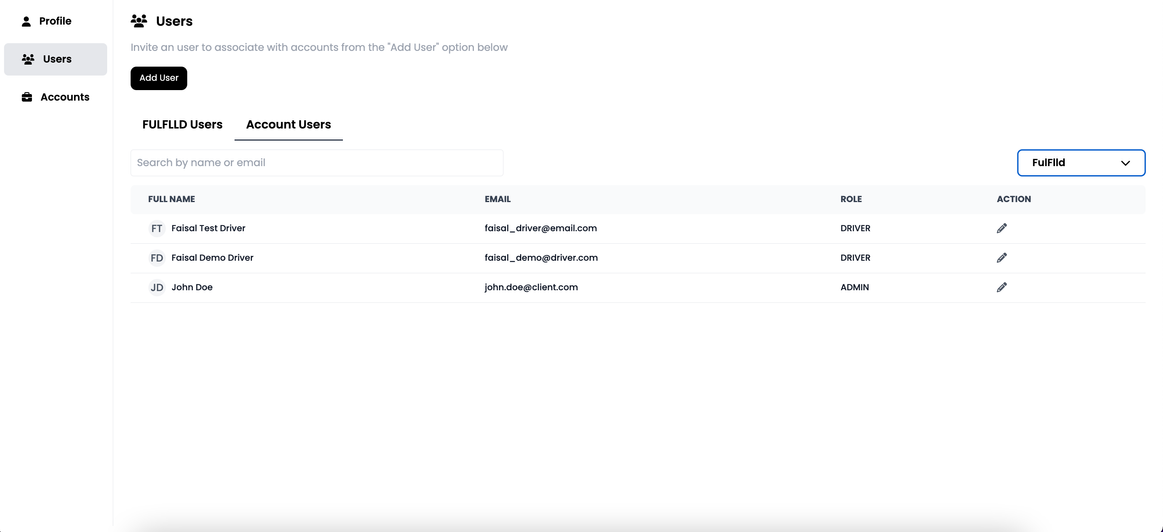
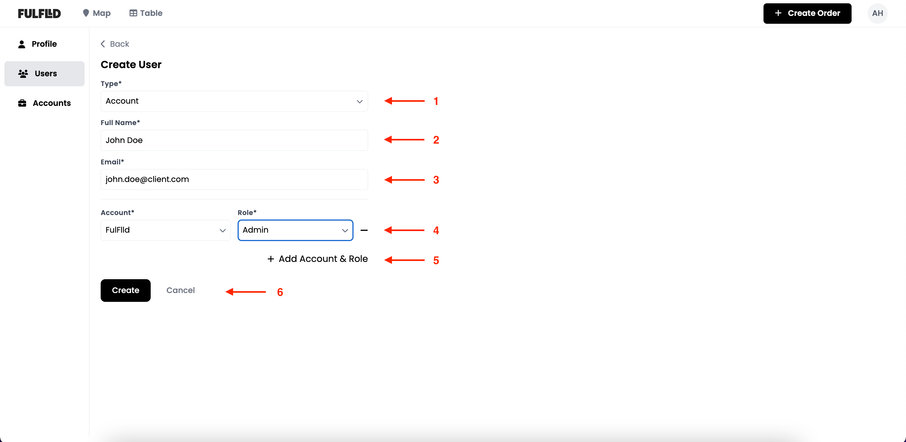
Click on the “Add User” button to add a new user to an account. This will give the newly created user access to the Fullflld app but their permission will be limited to work on data which is specific to their account. These users will not be able to manage or view data from other accounts/clients.
- Select the type “Account” from the dropdown
- Add full name of the user
- Add email address of the user
- Select the account and role you would want to give the user access to
- Add additional account(s) & role(s) if you would like to give the user access to multiple accounts
- Click “Create” to complete the process or user creation